

Spend Management Template
Track team expenses, manage budgets, and process reimbursements using Bkper's Spend Management template with built-in approval workflows.
Managing team expenses, tracking budgets, and processing reimbursements can be complex and time-consuming. Bkper’s Spend Management template demonstrates how a Book can handle the complete expense management lifecycle using the fundamental principle of tracking resources as they flow between places.
The workflow is naturally embedded in the Book structure using core Bkper features. Transactions represent expense submissions, file attachments hold receipts, the Checked field serves as approval status, and custom properties enable policy enforcement. No specialized expense module is needed — everything works through the elegant flow of resources between Accounts.
Copy the Template
Access the Spend Management Book Template in Bkper and select Copy book to create your own version. The template includes a pre-configured Account structure and sample Transactions that demonstrate the complete workflow.
Access the Team Member Report in Google Sheets and make a copy to your Google Drive, then follow the instructions on the first tab to connect the report to your own Book.
Understanding the Structure
The Spend Management Book organizes Accounts into Groups, each serving a specific role in the workflow.
Total Allocated Budget is an Asset Group (blue) containing individual budget allocation Accounts for each team member, such as Arun Allocated Budget or Daniella Allocated Budget. These Asset Accounts track each person’s available funds throughout the period, showing exactly how much budget remains at any point in time.
Expenses is an Outgoing Group (red) containing category Accounts like Food, Lodging, Transportation, and Materials. These Outgoing Accounts track where money is being spent. Separating expenses into categories gives you visibility into spending patterns across the team.
Budget allocation is an Incoming Group (green) that serves as the source for funding team budgets. This Incoming Account represents where the budget comes from when allocating funds to team members. You can hide this Group from regular views since it is primarily used for administrative Transactions.
Reimbursement is an Incoming Account (green) that serves as the source for replenishing team member budgets after approved expenses. While Budget allocation funds the initial setup, Reimbursement represents the actual payment back to team members. This separation provides clarity — you can easily distinguish between initial budget allocations and ongoing reimbursements throughout the period.

The Workflow
The expense management cycle flows naturally through four stages, each represented by Transactions that move resources between Accounts.
Budget Allocation
At the start of each period, budgets are allocated to team members. You record a Transaction from the Budget allocation Account to each team member’s Allocated Budget Account. For example, if Arun receives a monthly budget of 5,000:
| Date | Amount | From Account | To Account | Description | |
|---|---|---|---|---|---|
| 09/01/2026 | 5,000.00 | Budget allocation | >> | Arun Allocated budget | Monthly budget allocation |
This Transaction moves 5,000 into Arun’s budget, making it available for expenses.
Expense Submission
When team members incur expenses, they record Transactions from their Allocated Budget Account to the appropriate Expense category Account. The key is attaching the receipt using Bkper’s file attachment feature. For example, when Arun pays for a hotel:
| Date | Amount | From Account | To Account | Description | |
|---|---|---|---|---|---|
| 09/11/2026 | 1,060.00 | Arun Allocated budget | >> | Lodging | Contezza hotel #arun |
Expense Approval
Managers review submitted expenses by examining Transactions and their attached receipts. When an expense meets policy requirements and has proper documentation, the manager checks the Transaction. The Checked status serves as the approval flag — only Checked Transactions are reimbursed at period end. Unchecked Transactions remain pending until approved.
Managers can coordinate requests through their team’s communication channel and use the Transaction description or properties to preserve relevant review context in Bkper.
Reimbursement
On the first of the following month, approved expenses are reimbursed. You record a Transaction from the Reimbursement Account to each team member’s Allocated Budget Account for the total of their Checked expenses:
| Date | Amount | From Account | To Account | Description | |
|---|---|---|---|---|---|
| 10/01/2026 | 1,136.39 | Reimbursement | >> | Arun Allocated budget | Budget reset - approved expenses |
This amount represents only the approved expenses — any Unchecked Transactions are excluded until reviewed and Checked.
Transaction Flow Example
Here is a complete cycle showing how resources flow through the system.
Budget Allocation
| Date | Amount | From Account | To Account | Description | |
|---|---|---|---|---|---|
| 09/01/2026 | 5,000 | Budget allocation | >> | Arun Allocated budget | Monthly Budget |
| 09/01/2026 | 1,000 | Budget allocation | >> | Daniella Allocated budget | Monthly Budget |
Expense Submissions
| State | Date | Amount | From Account | To Account | Description | |
|---|---|---|---|---|---|---|
| ☑️ | 09/11/2026 | 1,060.00 | Arun Allocated budget | >> | Lodging #arun | 📎 |
| ☑️ | 09/11/2026 | 31.39 | Arun Allocated budget | >> | Food #arun | 📎 |
| ☑️ | 09/11/2026 | 45.00 | Arun Allocated budget | >> | Food #arun | 📎 |
| ☑️ | 09/15/2026 | 17.00 | Daniella Allocated budget | >> | Transportation #daniella | Lyft - personal card |
Approval
| State | Date | Amount | From Account | To Account | Description | |
|---|---|---|---|---|---|---|
| ✅ | 09/11/2026 | 1,060.00 | Arun Allocated budget | >> | Lodging #arun | 📎 |
| ✅ | 09/11/2026 | 31.39 | Arun Allocated budget | >> | Food #arun | 📎 |
| ✅ | 09/11/2026 | 45.00 | Arun Allocated budget | >> | Food #arun | 📎 |
| ☑️ | 09/15/2026 | 17.00 | Daniella Allocated budget | >> | Transportation #daniella | Lyft - personal card |
Monthly Reimbursement
| Date | Amount | From Account | To Account | Description | |
|---|---|---|---|---|---|
| 10/01/2026 | 1,136.39 | Reimbursement | >> | Arun Allocated budget | Budget reset - approved expenses |
Customization Options
The template is designed to be flexible and adapt to your team’s specific policies and workflows.
Account Properties enable policy enforcement. You can add custom properties to team member Accounts defining spending limits:
monthly_budget: 5000food_limit: 200lodging_limit: 2500transport_limit: 300These properties can guide manual approvals or enable automated policy enforcement using AI agents, bots, or scripts. For example, a Bot could automatically flag or reject Transactions that exceed category limits, or send reimbursement orders to payment gateways.
Workflow variations are easy to implement through properties and Transactions. To distinguish personal card expenses from company card expenses, add a property like payment_method: personal_card to Transactions requiring reimbursement. To implement aging policies, you might configure automation that automatically disregards Unchecked Transactions older than three months.
Incurring Expenses on the Go
Team members often incur expenses while traveling or working remotely, making it impractical to record detailed Transactions immediately. Bkper’s mobile app transforms this challenge into a seamless workflow by enabling instant receipt capture with minimal effort.
When a team member makes a purchase, they take a photo of the receipt from within the Bkper mobile app and post the image with a brief description — perhaps just the vendor name or expense type. The Transaction is recorded in the Book but remains in an unposted state, waiting for review.
Bookbot can then analyze the receipt image, extracting key information such as the amount, vendor name, date, and nature of the expense. Based on the Book’s Account structure and historical patterns, Bookbot suggests the appropriate categorization and auto-completes the Transaction details.
The team member can review Bookbot’s suggestions and post the Transaction immediately, or leave it unposted for later review. A team manager can also review all unposted Transactions, verify the categorization against the receipt image, make adjustments, and post them in batch. This flexibility accommodates different trust levels and approval workflows.
The combination of mobile receipt capture and AI-assisted completion dramatically reduces the burden on team members. Instead of manually entering amounts, dates, categories, and descriptions while juggling receipts, they simply snap a photo and let Bookbot handle the details — capturing expenses in real time while maintaining the accuracy required for proper expense management.
Team Member Dashboards
While team members can view their budget status directly in the Book, many organizations create personalized dashboards using Google Sheets. These dashboards connect to the Book through Bkper Functions, displaying real-time data filtered to each team member’s activities.
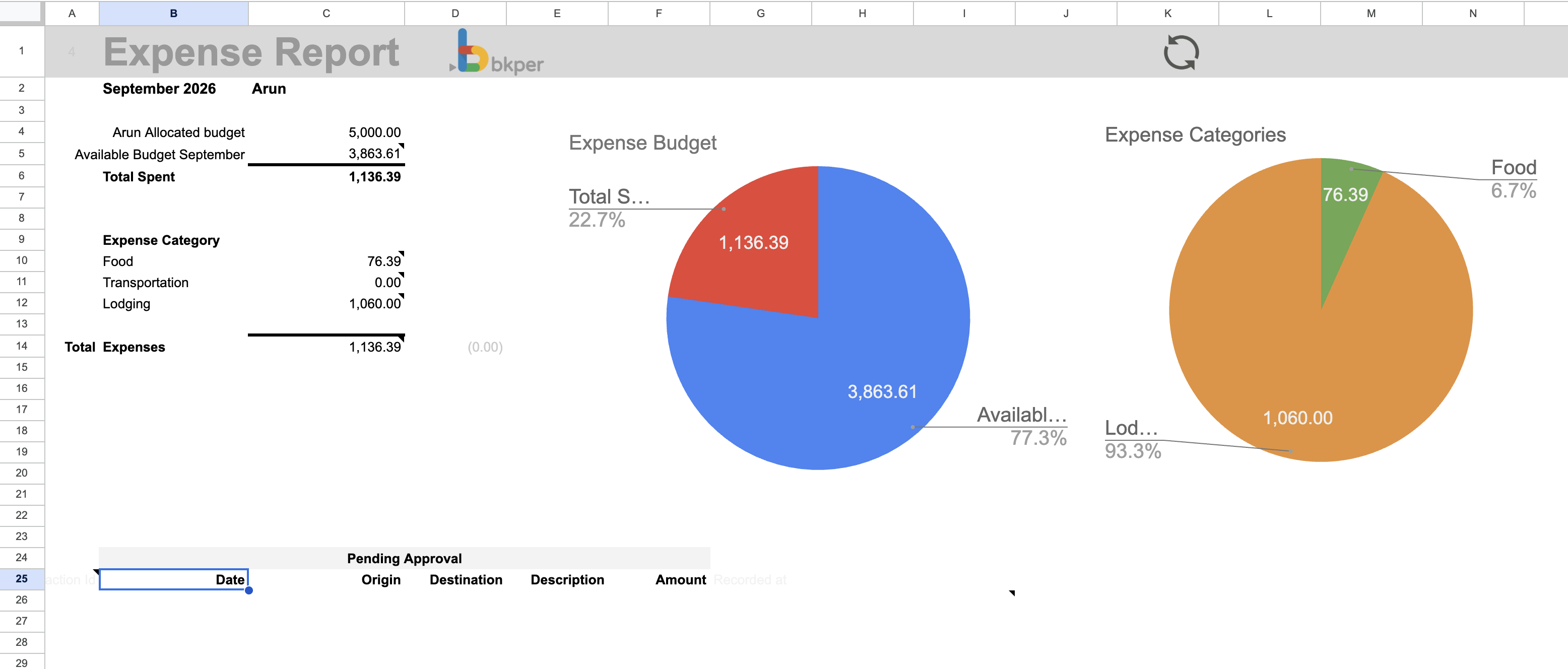
A typical dashboard shows the team member’s allocated budget for the period, their available balance after recorded expenses, and total amount spent. The dashboard breaks down spending by expense category — Food, Transportation, Lodging, Materials — helping team members understand their spending patterns at a glance.
The most valuable feature is the pending approval section, which lists Transactions that remain Unchecked. Each pending Transaction displays its date, amount, description, and a direct link to view the details in Bkper. This visibility eliminates the need for team members to repeatedly ask whether their expenses were approved.
The dashboard requires minimal setup — connecting to the Book through its identifier and filtering data by team member name and date range. Once configured, it updates automatically as Transactions are recorded, posted, and Checked.
Managing External Team Members
Organizations frequently work with contractors, freelancers, or consultants who need to incur expenses against project budgets but should not access the organization’s broader financial information. Bkper handles this through permission controls.
External members can be added to the Book with post only permission. This allows them to record Transactions and capture expenses with receipts through the mobile workflow, while preventing them from viewing the Book’s structure, other team members’ activities, or financial details beyond their own submissions.
To provide external members with budget visibility, you can create personalized dashboards as described above, showing only their allocated budget, submitted expenses, and approval status.
When an external member’s engagement ends, you remove their Book access and revoke dashboard access. Their historical Transactions remain in the Book for audit purposes, but they can no longer record expenses or view information.
Key Concepts
The Checked status is central to this workflow. When a Transaction is Checked, it signals approval and eligibility for reimbursement. Unchecked Transactions remain pending. Transactions can also be Trashed to indicate rejection, excluding them from calculations.
Receipts should be attached to Transactions before considering approval. The file attachment feature creates a permanent link between the expense record and its supporting documentation, establishing a complete audit trail.
The monthly reimbursement cycle aligns naturally with payroll and accounting periods, but you can adjust the timing to match your organization’s needs — some teams reimburse weekly, others quarterly.
Every Transaction maintains a complete audit trail showing who spent what amount, when it occurred, which category it belongs to, and whether it was approved. Descriptions, properties, attached files, and Events preserve the relevant review context in the Book, including for Trashed Transactions.
The template demonstrates that Bkper handles sophisticated expense management workflows using only core features — Books, Accounts, Groups, Transactions, file attachments, the Checked field, and custom properties. By understanding resources as movements between places, complex workflows become simple, intuitive, and powerful.