Business General Ledger Template
Get started quickly with Bkper and the Google Sheets Add-on by copying the General Ledger Book template and its companion Sheet report.
If you are new to the Bkper Add-on for Google Sheets, the Business General Ledger Template is a great starting point. It pairs a Bkper Book with a simple Chart of Accounts and a Google Sheet report that fetches data directly from the Book.
Copy the Book Template
Open the Bkper Book Template and click Copy book to create your own copy.

Copy the Sheet Template
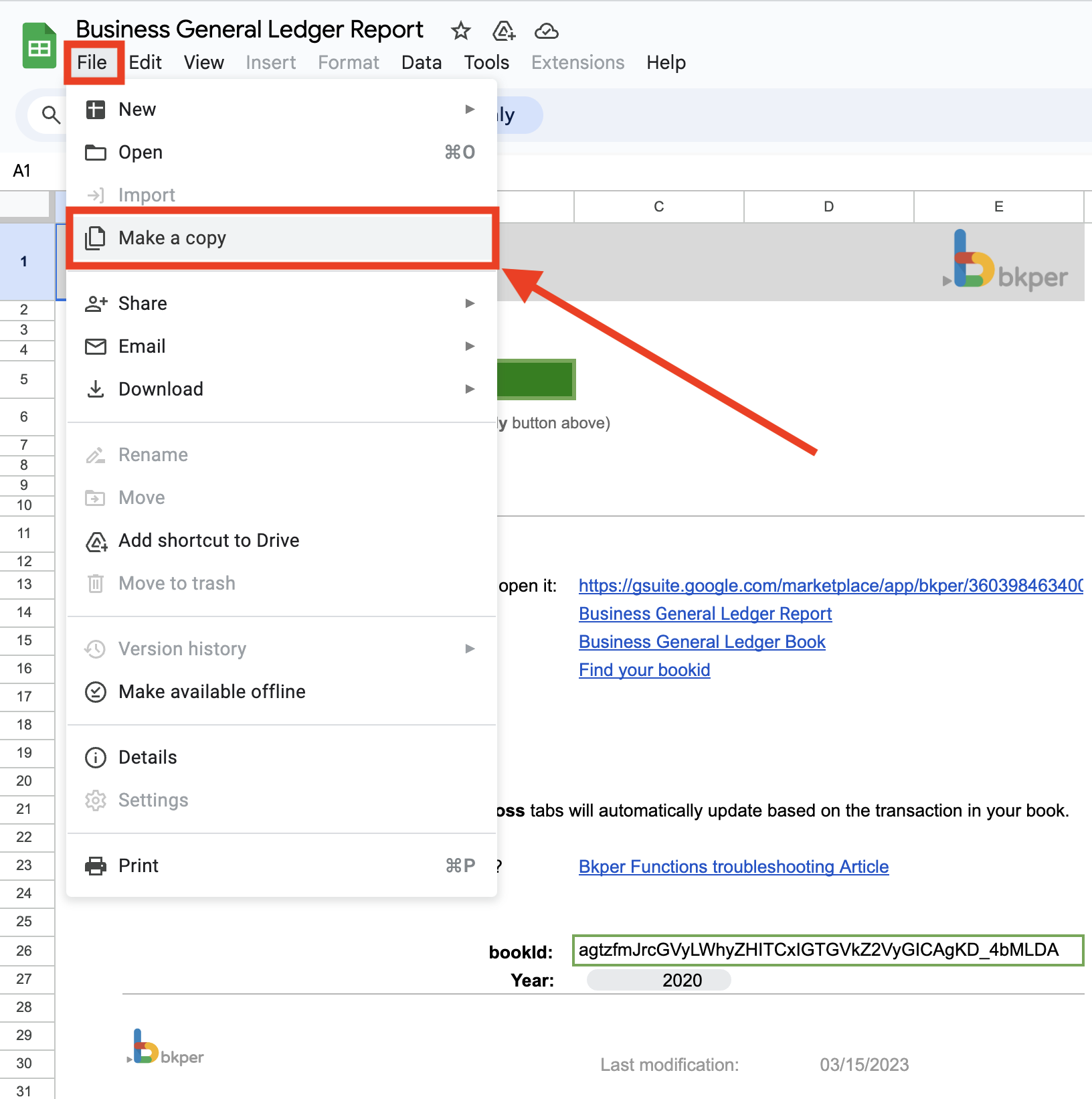
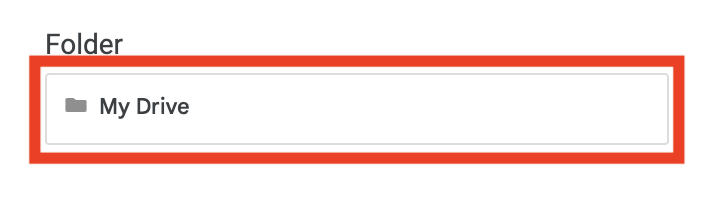
Open the Google Sheet Template and select File > Make a copy to save it to your own Google Drive.
Connect the Sheet to Your Book
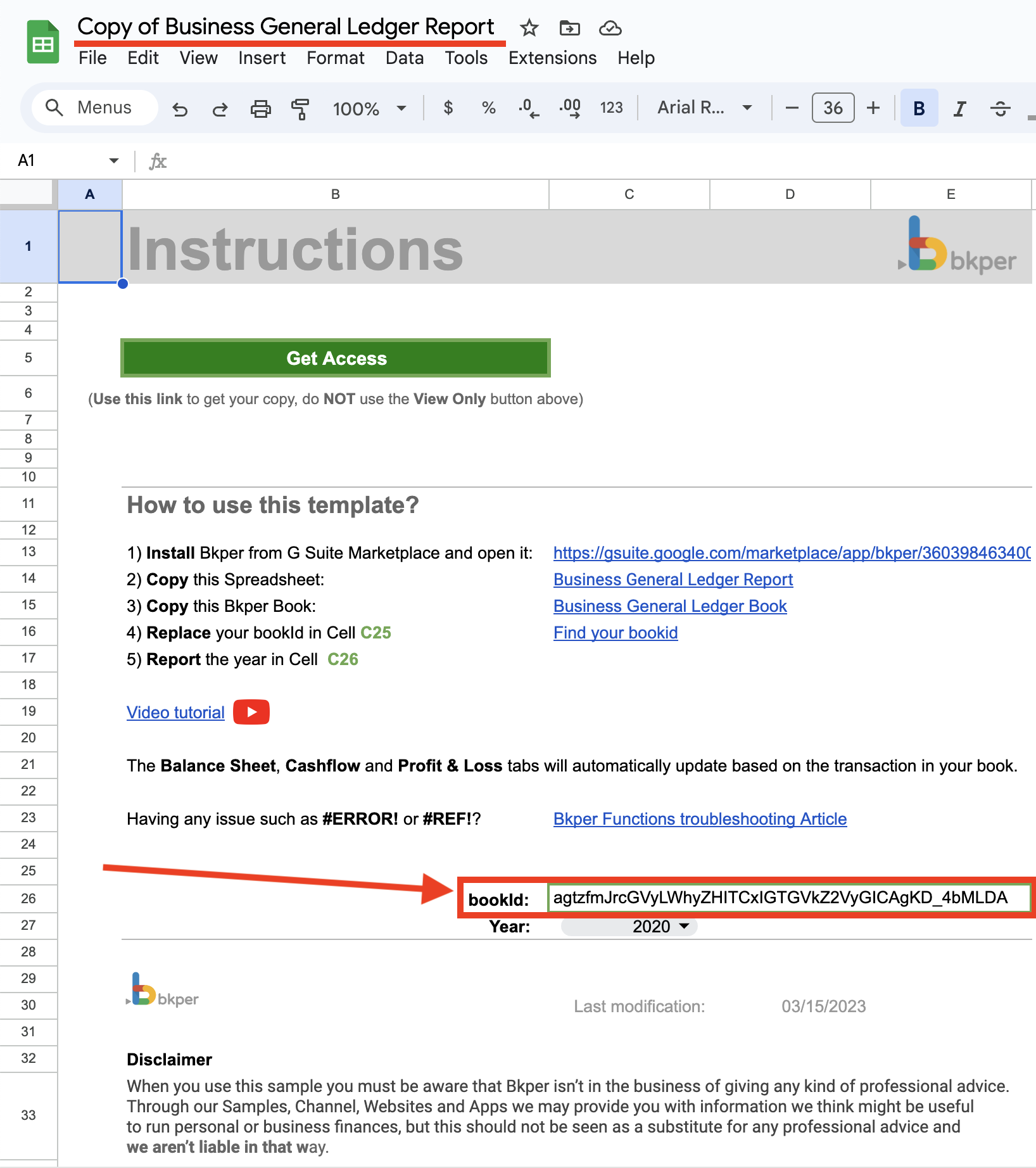
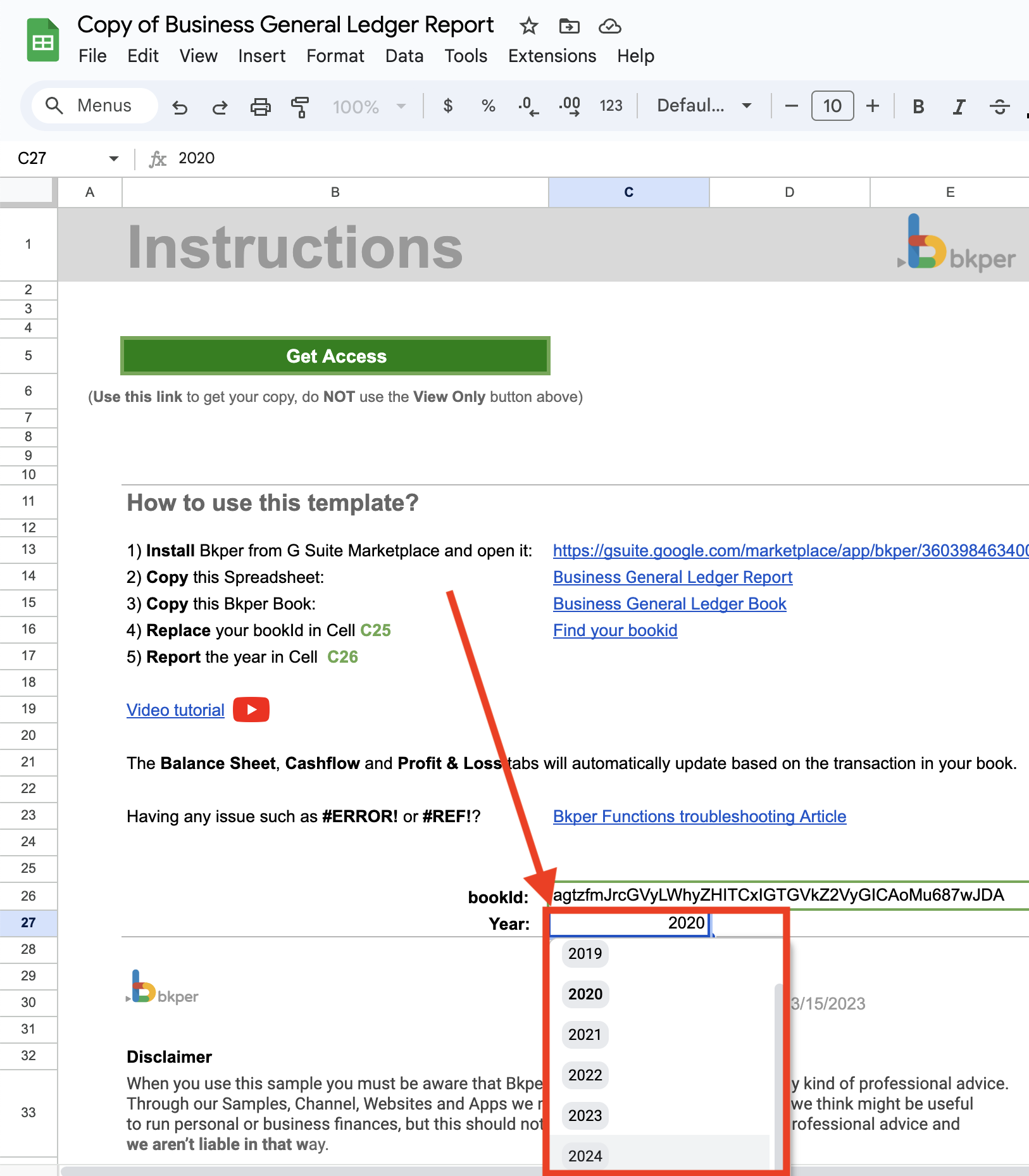
Once you have both copies, retrieve the bookId from your copy of the Book Template. Then open the Instructions tab in your copy of the Sheet and replace the bookId with your own.
Record a Transaction and Explore
Record a Transaction in your Book to generate some data. Then change the year on the Instructions tab and explore the other tabs to see your financial data flowing into the report.
Important Notes
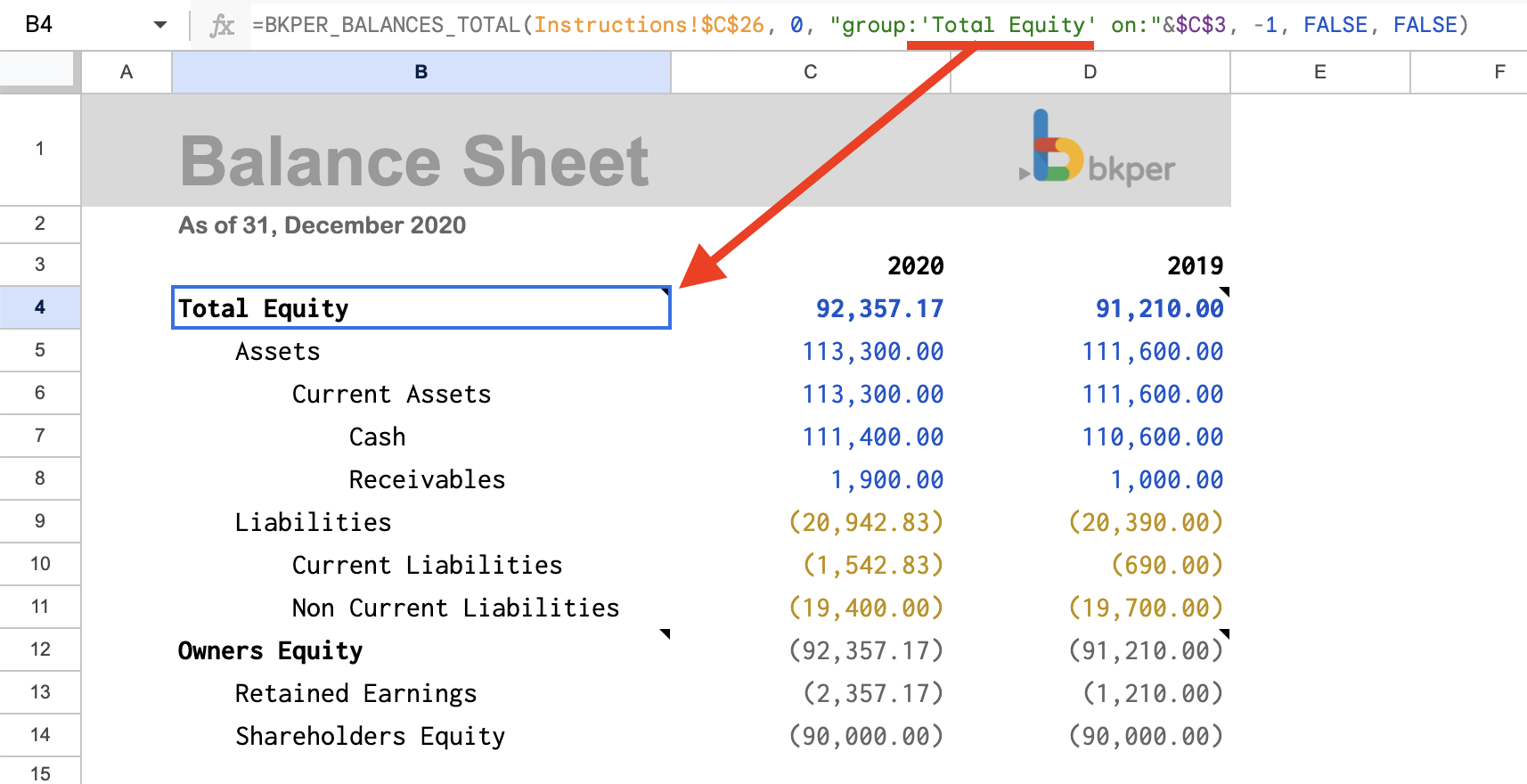
If you change the name of the Total Equity Group in your copy of the Book, you must also update that name in the query used by the Bkper Function in your copy of the Sheet report.