

Build Your First Report
A hands-on tutorial that walks you through fetching live balance data from Bkper into Google Sheets and building a simple financial report.
This tutorial walks you through creating a live financial report on Google Sheets using data from your Bkper Book. By the end, you’ll have a working balance report that updates automatically as Transactions are recorded in Bkper.
Prerequisites: Install the Bkper Add-on and have at least one Book with recorded Transactions.
Step 1 — Open the Sidebar
Open a Google Sheet and go to Extensions >> Bkper >> Open. The Bkper sidebar appears on the right side of your Sheet.
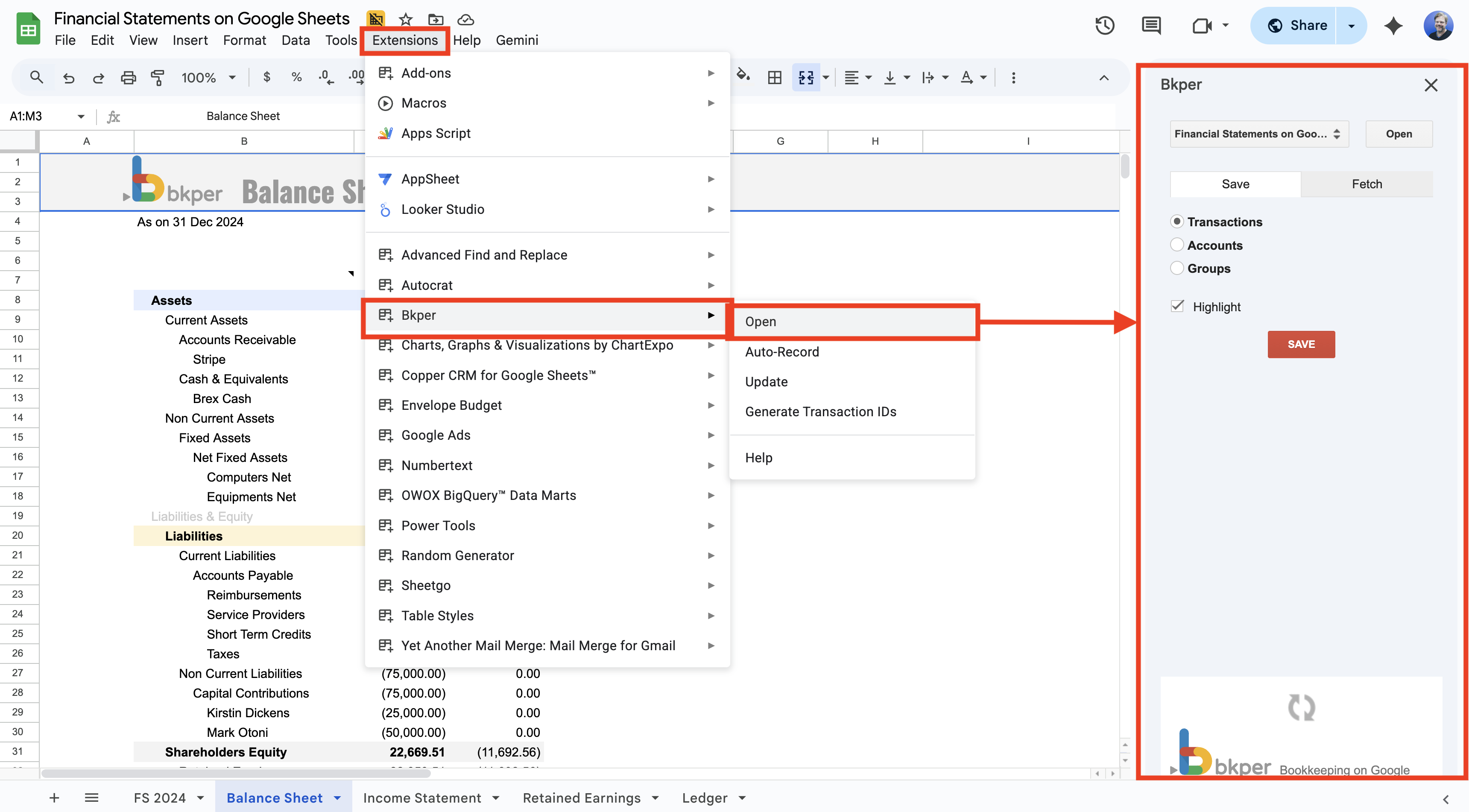
The sidebar is your main interface for working with Bkper in Google Sheets. It lets you browse your Books and fetch or save data without writing formulas manually.
Select the Book you want to report on from the dropdown. This tells the Add-on which Book to pull data from.
Step 2 — Fetch Balance Data
Click the Fetch tab in the sidebar. This tab lets you pull different types of data from your Book into your Sheet.
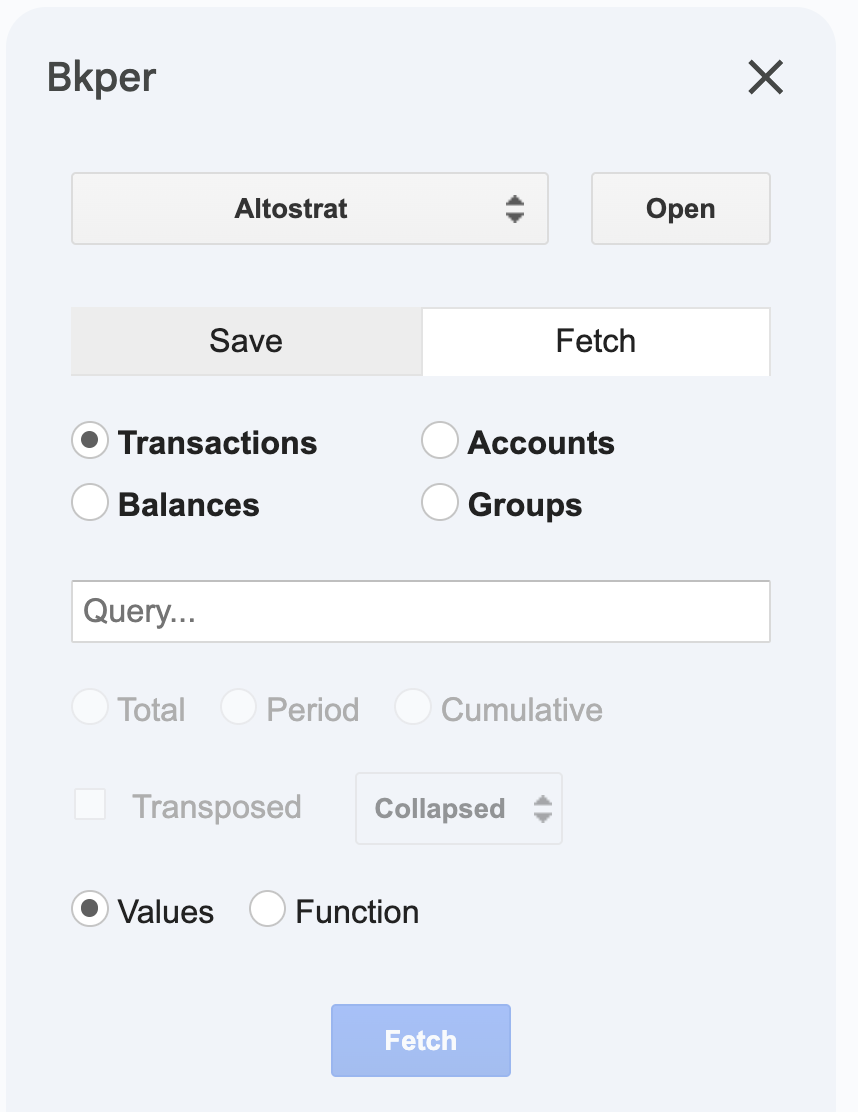
Select Balances as the data type. The sidebar expands to show balance-specific options.
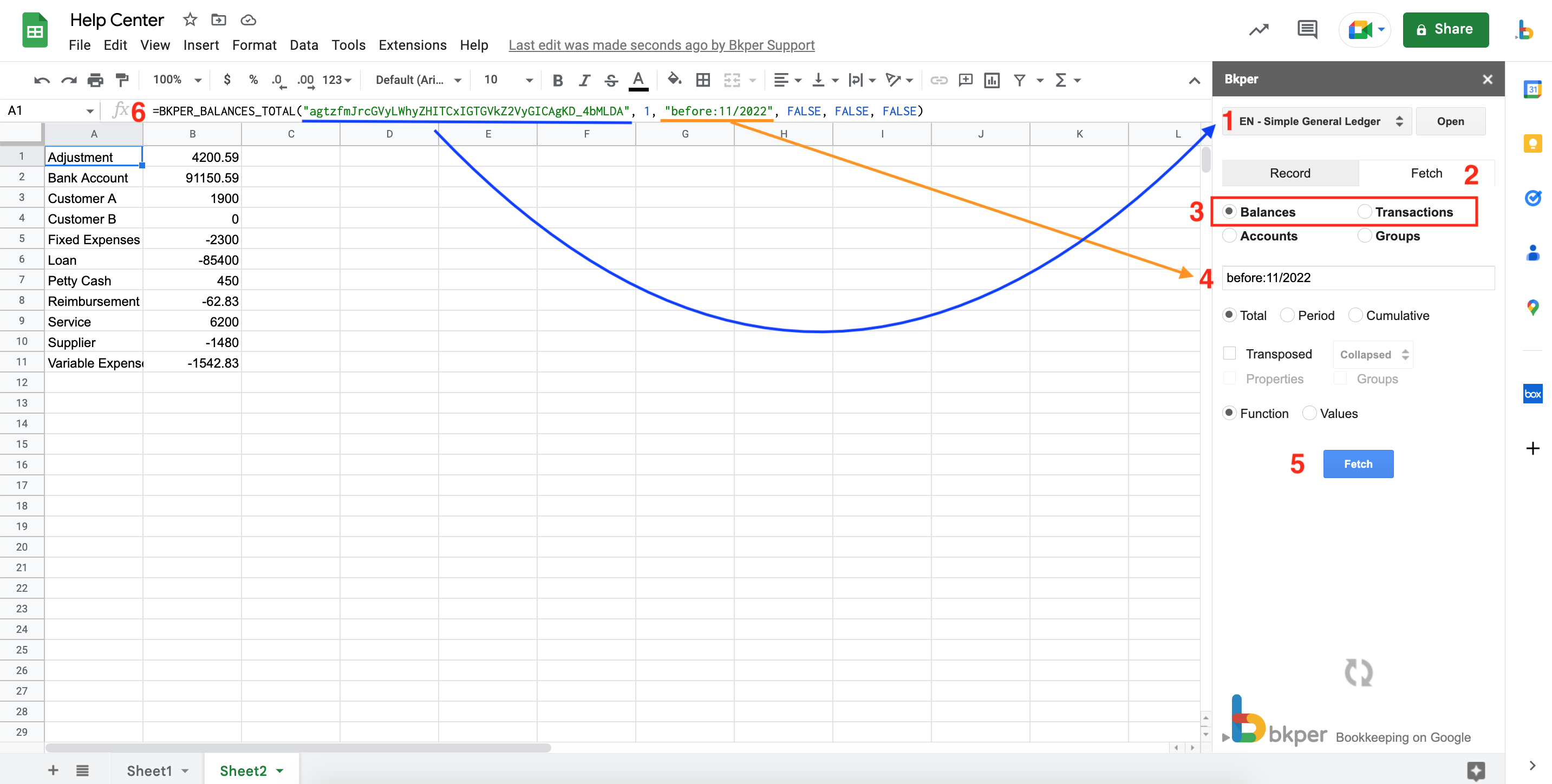
Configure your fetch:
- Query — Enter a query to filter the data. For example,
group:'Revenue' after:01/2024 before:01/2025fetches revenue balances for the year 2024. - Total — Select this to get total balance values.
- Function — Select this so the formula stays connected to your Book (the data updates when you refresh).
Click in a cell where you want the report to start, then press Fetch.
Step 3 — See the Live Connection
The sidebar inserts a formula into your selected cell and the balance data appears in your Sheet.

What just happened:
- The Add-on created a
BKPER_BALANCES_TOTALformula in your cell - The formula contains your Book ID — a unique identifier that connects this Sheet to your specific Book
- The formula fetched live data from Bkper and displayed it in your Sheet
This is the key concept: Bkper formulas are live connections to your Books. Unlike static data, these values update whenever you refresh. Post a new Transaction in Bkper, click Extensions >> Bkper >> Update, and the report reflects the change.
Step 4 — Understand the Formula
Click the cell with the formula to see it in the formula bar. It looks something like this:
=BKPER_BALANCES_TOTAL("agtzfmJrcGVyLWhyZH...", 1, "group:'Revenue' after:01/2024 before:01/2025", TRUE, FALSE, FALSE)Breaking it down:
| Parameter | Value | Purpose |
|---|---|---|
| bookId | "agtzfmJrcGVyLWhyZH..." | Identifies which Book to fetch from |
| cache | 1 | Controls caching — the Update menu increments this to force a refresh |
| query | "group:'Revenue' after:..." | Filters which balances to return |
| expanded | TRUE | Shows individual Accounts within the Group |
| transposed | FALSE | Results appear in rows (set TRUE for columns) |
| hideNames | FALSE | Shows Account/Group names alongside values |
You can edit any of these parameters directly in the formula bar. For example:
- Change the date range to see a different period
- Change
expandedtoFALSEto see only the Group total - Change the query to
group:'Assets'to report on a different Group
Step 5 — Add More Data to Your Report
Now that you understand how the formulas work, build out your report by adding more balance fetches. You can either:
Use the sidebar again — Click a new cell, adjust the query in the sidebar, and press Fetch. Each fetch creates a new formula in the selected cell.
Type formulas directly — Type =BKPER_ in any cell and Google Sheets suggests available Bkper functions.
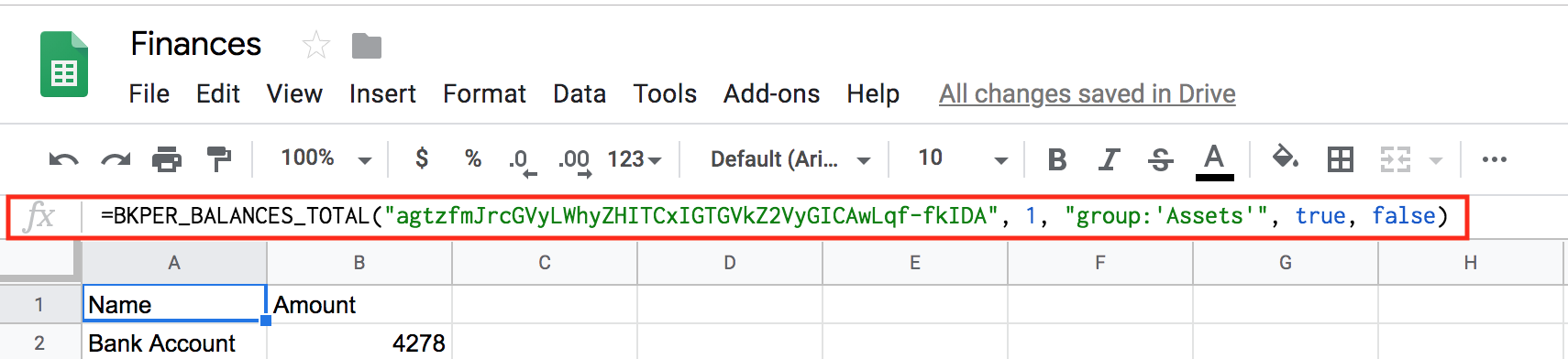
A typical financial report might include:
BKPER_BALANCES_TOTALwithgroup:'Assets'for the Balance SheetBKPER_BALANCES_TOTALwithgroup:'Revenue'for IncomeBKPER_BALANCES_PERIODwithgroup:'Expenses'for monthly expense breakdownBKPER_BALANCES_CUMULATIVEwithgroup:'Assets'for a running balance over time
Step 6 — Format Your Report
Use standard Google Sheets formatting to make your report presentable:
- Add a title and date range header
- Apply number formatting to balance values
- Add borders and shading to separate sections
- Use Google Sheets’ built-in Print to generate a PDF
The Bkper formulas are regular spreadsheet formulas — they work with all standard Google Sheets features like SUM, IF, conditional formatting, and charts.
Next Steps
- Google Sheets Add-on README — Complete reference for all functions, column headers, and recording behavior
- Financial Statements template — A working example of a complete Balance Sheet and Income Statement
- Profit and Loss template — A working example of a dynamic P&L report