

Financial Statements on Google Sheets
Build dynamic Balance Sheets, Income Statements, and Retained Earnings reports on Google Sheets using live data from your Bkper book.
Bkper integrates with Google Sheets so you can prepare financial statements with live data from your books. This lets you simplify periodic reporting obligations and gain a clear view of your business’s financial position and performance — all in a format you can safely share with your team.
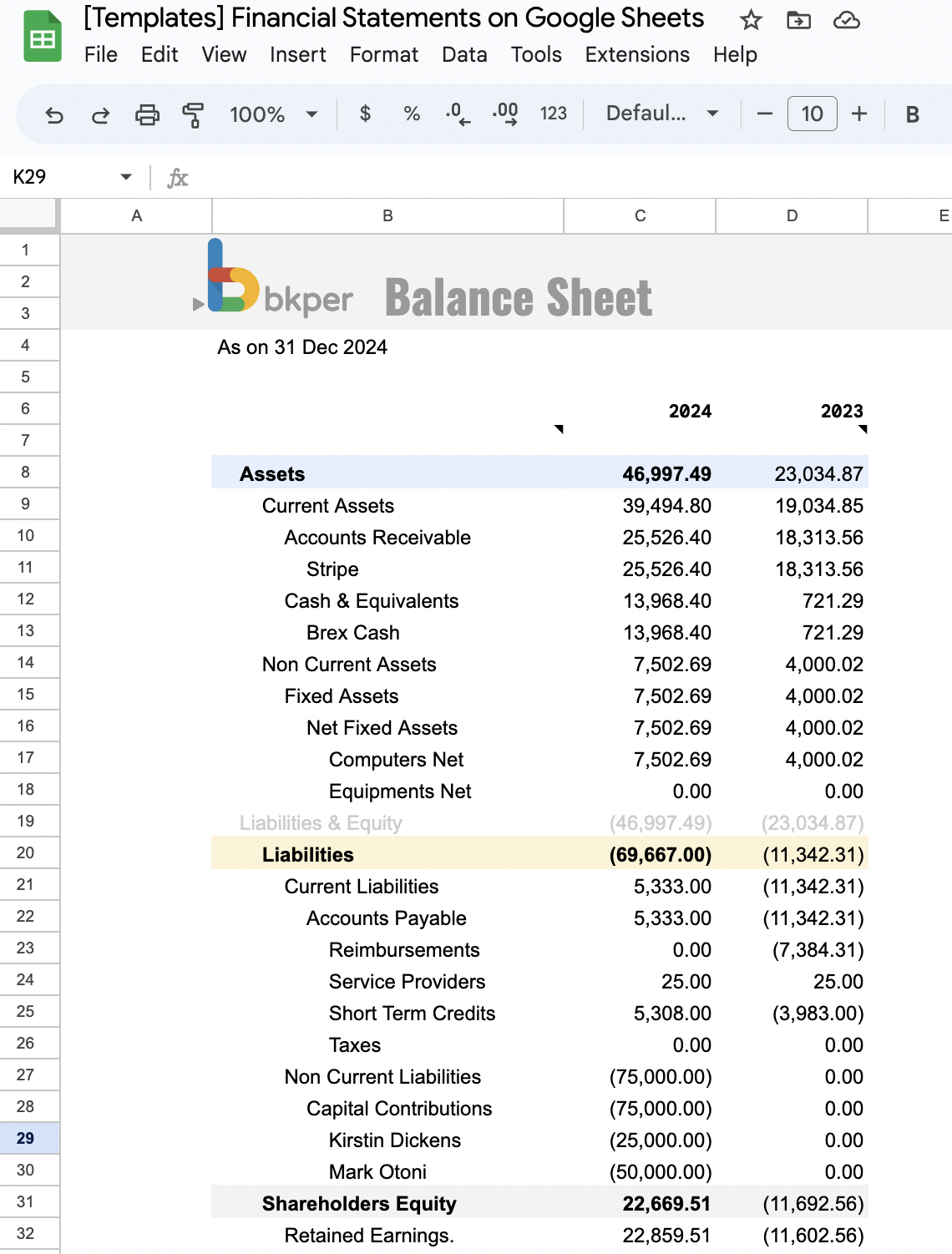
The working example in this guide models a small team launching an online subscription-based service. It includes a Bkper sample book covering just over two years of operations and a Google Sheets report that presents a Balance Sheet, an Income Statement, and Retained Earnings — giving insight into both the financial position and the performance of the business.
Concepts covered in the example
Shareholders — The Shareholders group contains transactions related to the distribution of shares. Two shareholders are founders; two others buy in at par value plus a premium.
Investment — The Capital Contributions group tracks investment transactions.
Reimbursement — The Reimbursements group records expenses paid by founders before the business generated revenue.
Payment Gateway — The Accounts Receivable group represents a payment gateway that handles customer billing.
Gross Margin / Net Income — The Gross Margin group captures revenue from operations minus cost of goods sold. Net Income includes all income and expenses.
Retained Earnings — The Retained Earnings at the end of the covered period reflect a profit from 2023 and a loss in 2024.
The financial statement
Balance Sheet — The Google Sheet fetches the Balance Sheet as of December 31, 2024, alongside the previous year, showing Assets, Liabilities, and Equity and how they evolved over the period.
Income Statement — The sheet also fetches an Income Statement covering the performance for 2024 and 2023.
Retained Earnings — The Retained Earnings tab tracks the Profit and Loss evolution across periods.
Prerequisites
To follow this guide you should have some experience with Google Sheets and Bkper, along with a basic understanding of bookkeeping or accounting principles.
You will need:
- A Bkper book — the foundation for organizing and consistently tracking all transactions and balances.
- A Google Sheets report — where Bkper data is transformed into financial statements.
- The Bkper Add-on for Google Sheets — the integration that connects both platforms.
How it works
The Bkper Add-on for Google Sheets integrates both services, enabling direct retrieval of financial data from your Bkper book into your spreadsheet.
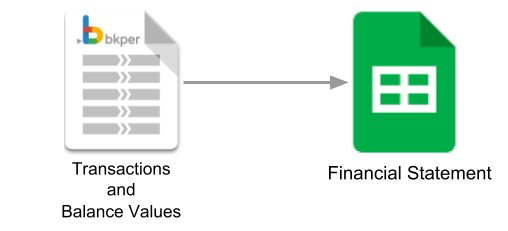
A financial statement connected to a Bkper book updates automatically as new transactions change account balances. The data is fetched using OAuth2 authentication. The Bkper Add-on and Bkper Functions are open-source projects built on the BkperApp library for Google Apps Script, which accesses the Bkper API.
You can fetch financial data through the Bkper Add-on wizard or by writing Bkper Functions directly in your spreadsheet.
Statement details
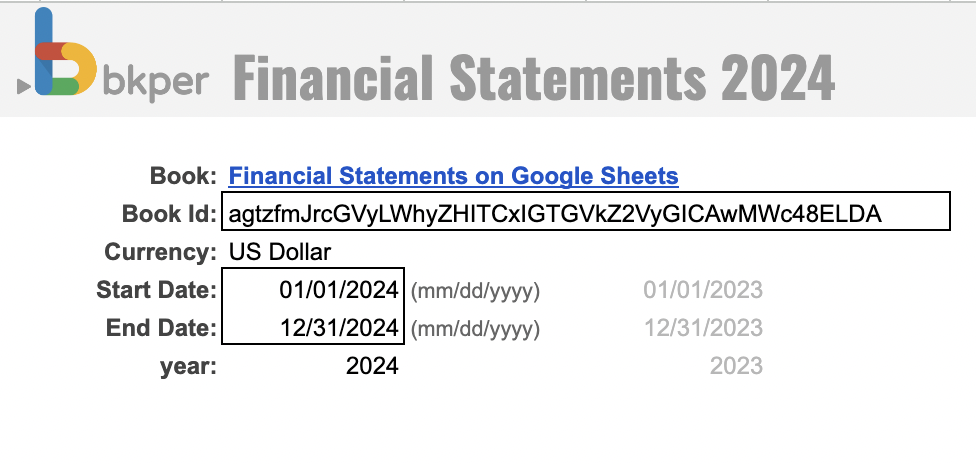
Sheet FS 2024 — The bookid in cell C6 identifies the source book. The dates in cells C8 and C9 define the reporting period.
Sheet Balance Sheet — Bkper Formulas in cells B7 (2024) and D7 (2023) pull in the balance data. Here is what the dynamic formula looks like:
=BKPER_BALANCES_TOTAL('FS 2024'!C6, 1, "group:'Net Assets' on:"& C6, 5, FALSE, FALSE)These formulas are dynamic — changing the bookid or dates on the FS 2024 tab causes the entire statement to adjust. This makes it straightforward to template and standardize reports across multiple books and clients.
Tab Income Statement — The Income Statement uses Bkper Formulas in cells B7 and Q7 for extended P&L data, and O8 and AD8 for P&L totals. Fetching the same data in both extended and totals formats provides a natural way to audit for discrepancies.
Tab Retained Earnings — This tab demonstrates how a wide range of reports can be derived from balance values. Cells G9 and G10 hold the Bkper Formulas for retained earnings totals, including comparisons across different periods.
Try it yourself
The best way to learn is to experiment with your own copy of this working example.
Copy the Bkper book template and the Google Sheets template, then install the Bkper Add-on. Record some transactions in your book, then open your copy of the financial statement. On the FS 2024 tab, update the bookid to match your copied book, and adjust the start and end dates to cover the period of your transactions.
Collaboration
This guide links directly to specific data in both the Bkper book and the Google Sheet — pointing you to exact values without any searching. This same approach works when collaborating with your team. Share links to specific cells, accounts, or transaction queries with clients, bookkeepers, CPAs, and auditors to communicate financial context with precision.