

Bkper Agent
Ask about your Books, build reports, and work on files with Bkper's AI agent, inside Bkper and with nothing to install.
Bkper Agent works on your Books from inside Bkper. It reads your Books, computes amounts with scripts, builds reports, works on the files you give it, and proposes changes. Bkper runs it in the cloud, so there is nothing to install.
Looking for automatic document processing, without a chat? That is Bookbot, formerly called Bkper Agent.
Open Bkper Agent
-
Open a Book.
-
Click the Agent icon in the Book’s top bar, next to Appearance.
The agent opens over the Book. Restore puts it back in the sidebar beside the Book. When the agent changes the Book, the panel returns to the sidebar on its own, so you see the change. Click the icon again to close it.
-
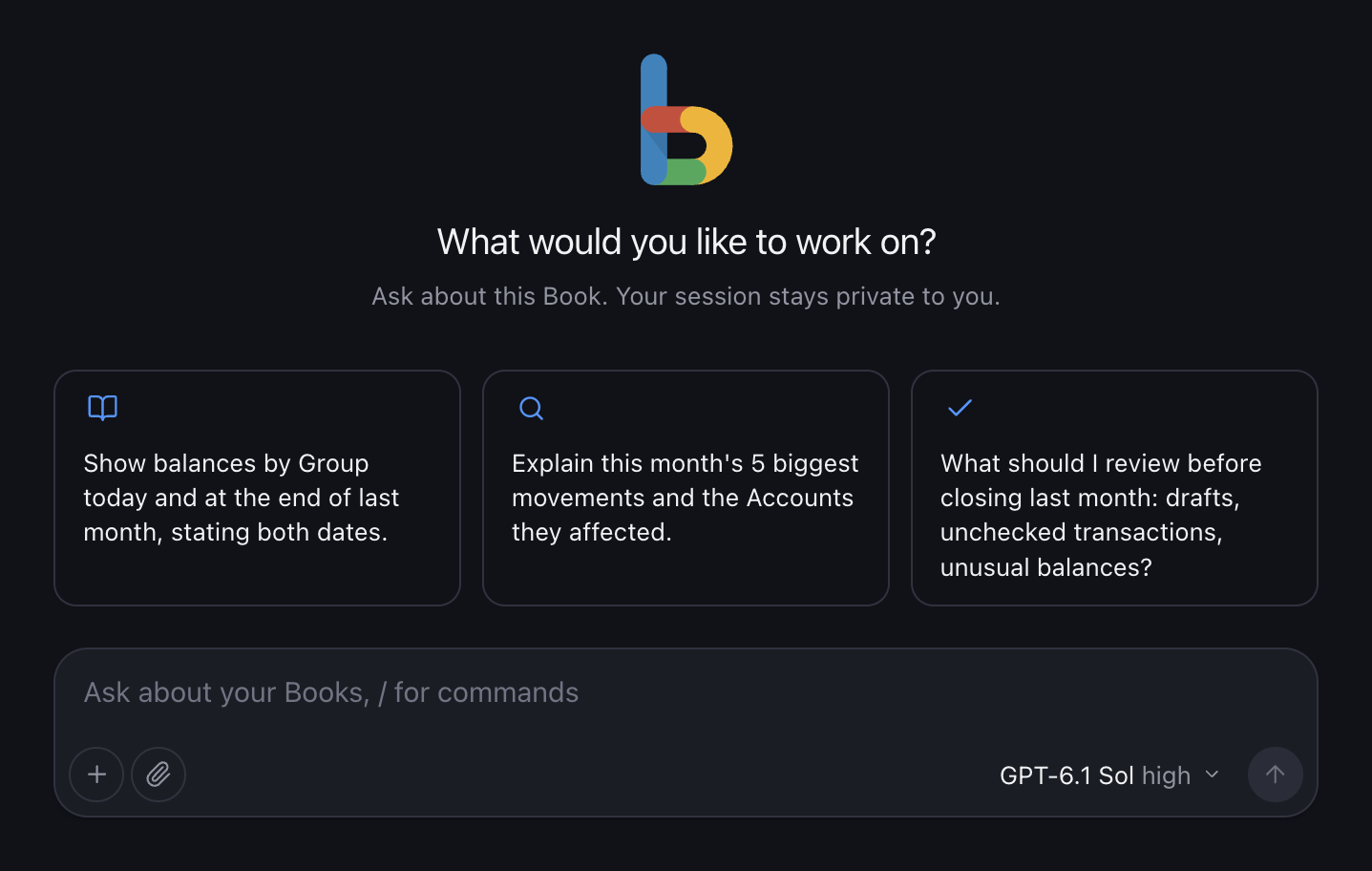
Pick a suggestion or write your own request.
Suggestions come from the Book’s current state, such as a failing bot, pending drafts, or a month with nothing recorded. A click fills the message box; nothing is sent until you send it.
Book context
When you write from a Book, each message records that Book and its current query. Moving to another Book or query affects your next message only. Work already running keeps the context it started with.
Work with sessions
- Start a new session with New session or
/new. Sessions are private to you until you share them, and listed on every device you sign in to. - Steer while it works. Press Enter to steer the current run, or Alt+Enter to queue a follow-up for when it finishes. Remove a queued message before it is delivered.
- Stop a run at any time.
- Fork from here, on any reply, continues in a new session from that reply. The original session stays unchanged.
- Edit in a new session, on any of your messages, starts a new session just before that message, with its text ready to edit.
- Rename or archive a session from its menu, and search the session list.
Forking copies the conversation only. It does not undo file changes or changes already made to a Book.
Type / in the message box for commands:
| Command | Effect |
|---|---|
/new | Start a new session |
/model | Choose a model |
/thinking [level] | Choose a thinking level |
/compact [instructions] | Summarize earlier context, optionally with a focus |
/name <title> | Rename the session |
/stop | Stop the current run |
Share a session
Share a session so your colleagues and Book collaborators can follow it live: to learn how you worked, to check your work, or to help. They can read it and continue it as their own. Only you can change it.
-
Open the session menu in the session’s top bar.
-
Turn on Share session. Below the switch, the menu shows who will see the session before you share it, such as everyone at your company and everyone who can view the Book, and how many of the Book’s collaborators are outside your company.
Shared sessions are marked with an icon in your list. Turn the switch off to stop sharing: anyone following the session loses it at once. Copies and exports people already made stay with them.
Who sees a shared session
| Session started | Shared with |
|---|---|
| Outside a Book | Everyone at your company domain |
| In a Book | Everyone at your company domain, and everyone who can view that Book, including people outside it |
- A session belongs to the Book it started in. Sharing it later, from anywhere, never changes who sees it.
- Who can view a Book: Owners, Editors, and people with Record and View or View Only access. Record Only users do not see shared sessions.
- Without a company domain, such as a Gmail account, you can share only sessions started in a Book.
- You need access to the Book to share a session started in it.
- Access is checked live. Bkper checks who can see a session each time it is opened or followed. Someone who leaves your company or loses access to the Book stops seeing it within minutes.
Follow a shared session
Switch the session list from My sessions to Shared. In a Book, it lists the sessions shared in that Book. At agent.bkper.app, it lists the sessions shared with your company. Each row shows the title, who shared it, and when it last changed.
A shared session opens read-only and shows who shared it. It updates live while its owner works, and you can open and download its files while it is shared.
Continue a shared session
Any session you can read, you can continue as your own. Each way below creates a new session of yours, marked Continued from a session by its owner, and opens it:
| You | Your session starts from |
|---|---|
| Reply in the message box | The latest finished reply |
| Choose Fork from here on a reply | That reply |
| Edit one of the owner’s messages | Just before that message, then sends your edited text |
- Your session works with your access only. The agent acts as you, so it reads and changes only the Books you can. Continuing a session never lends you the owner’s permissions.
- The original stays as it is. Nothing you do reaches the owner’s session, and the owner is not notified.
- Files stay with the owner. The agent sees their names in the history. Attach them again if your session needs them.
- While the owner’s run is still in progress, your session starts from the last finished reply.
Export a session
Choose Export in the session menu to download the session as one JSON file. Owners and anyone the session is shared with can export it.
The file holds every message, reply, and step the agent took, with the model, thinking level, instructions, and versions it used. It lists the session’s files without their contents. Use it to give the session to another agent or to Bkper support. It contains everything the session does, so share it with the same care.
Get help from Bkper support
Bkper support has no special access to sessions. To get help with one, export it and send the file to support@bkper.com.
Choose a model
Pick the model below the message box, or type /model. New sessions start with GPT Sol on paid plans and GPT Luna on the Free plan. Bkper Agent shows how much of the model’s context a session uses and its estimated cost.
Models are included with your plan, and their usage counts against your monthly Bkper AI allowance. See Models and Usage for what each model suits, its rates, and the allowance.
Files
Give the agent files
Attach files to a message in any of three ways:
- Drag and drop them onto the conversation.
- Paste them into the message box.
- Click the paperclip next to the message box and choose them.
Each file uploads as soon as you add it. Send once every file shows as attached; a message can be files only.
- Any format. Bank statements, ERP or payroll exports, spreadsheets, PDFs, ZIP archives, or a format only your other system uses. The agent inspects each file and parses it with a script.
- Images too. The agent looks at images you attach, such as a photo of a receipt or a screenshot, with any model that accepts images, which all current Bkper AI models do. It can also look at a page of a PDF, such as a scanned statement.
- Up to 25 MB per file and 10 files per message.
- Files you attach are private to you, unless you share the session. The agent treats their contents as information, never as instructions: text inside a file cannot change its rules or approve a change to a Book.
Files the agent delivers
The agent delivers a file only when you ask for one, such as an export or a report. Files appear in the conversation as downloads, and PDFs also preview there.
- Each file is a copy of the result at that moment. Asking for a change produces a new file.
- A file can be up to 25 MB.
- Downloads are private to you, unless you share the session.
How long files are kept
Files you attach and files the agent delivers are kept for 30 days, then deleted. After that, the file still shows in the conversation, but it can no longer be downloaded or used again; attach it again if you need it.
Each person can keep, over the last 30 days, up to 1,000 attached files and 1 GB, and separately up to 1,000 delivered files and 1 GB. Files older than 30 days stop counting, so space frees up on its own.
To keep a file for good, download it, or ask the agent to attach it to a Book. Agent files are separate from Book files.
Connected services
Connect your other services once, such as GitHub, Google, or your support desk, and the agent can work with them too: open a pull request, read an Analytics report, or pull last month’s support conversations.
You give a token or key once. Bkper stores it encrypted and adds it to the agent’s requests to that service’s hosts, outside the agent’s workspace. The agent never sees it.
-
Click Connected services at the bottom of the session list.
-
Click a service: GitHub, Google, or Another service.
-
Fill in the form and click Connect.
A connected service shows Connected, with its hosts, or the service account’s email for Google. Click it to:
- Replace token, or Edit for Google, when a token expires or you want to change what it allows. When a service rejects a stored token or key, the agent tells you.
- Disconnect, to stop at once. The agent’s requests to its hosts then go out without a token.
GitHub
Git and the GitHub CLI in the agent’s workspace use the token. Create a fine-grained token on GitHub opens GitHub’s token page, already asking for read and write access to contents and pull requests. Choose the repositories the agent may work on.
Google APIs take a service account instead of a token:
- Key file: the service account’s JSON key, from Google Cloud.
- APIs: Analytics, Drive, and Sheets, each Read or Read and write. Other API adds any other Google API by its hosts and scopes.
Then enable each API in the key’s Google Cloud project, and share what the agent should reach, such as an Analytics property or Drive folders, with the service account’s email address.
Another service
Any other HTTPS API that takes a token connects as Another service:
| Field | What to enter |
|---|---|
| Name | The name the agent and you see, such as Intercom |
| Hosts | The exact API host names, separated by commas, such as api.intercom.io |
| How the token is sent | Bearer token, Username and token (Basic), or Custom header, as the service’s API documentation says |
| Username / Header name | Only for Basic, the username; only for Custom header, the header, such as x-api-key |
| Token | The token, which is never shown again |
For example, to connect Intercom:
-
Create an access token with an Intercom app that has read-only permissions. With write access, Intercom’s API can reply as any teammate or on behalf of a contact, and can delete or merge conversations.
-
Choose Another service and enter:
- Name:
Intercom - Hosts: your workspace’s region:
api.intercom.iofor the US,api.eu.intercom.iofor Europe, orapi.au.intercom.iofor Australia - How the token is sent: Bearer token
- Token: the access token
- Name:
-
Ask the agent, such as “Summarize last week’s Intercom conversations about invoices.”
Rules
- Each host belongs to one service. Connecting a host another service already uses names that service.
- Bkper and Cloudflare Artifacts hosts can’t be connected. The agent reaches them its own way.
- Up to 20 services, with up to 10 hosts each.
- They work wherever the agent acts as you: in Bkper Agent, in scripts with your token, and in apps that run the agent for you. You manage them only here, never through an app or bot.
- A bot with its own Bkper account, such as a team’s Slack bot, uses that account’s services, not yours.
Connect through the API
Scripts and a local agent, such as Bkper CLI Agent, can connect services for you with PUT /v1/services/{serviceId}, signed in as you. Give the agent the service’s API documentation and it can work out the hosts and how the token is sent.
Keep the token out of the chat: anything you paste there reaches the model and stays in the session. Instead, have the agent write the command, run it in your own terminal, and paste the token when it waits for it, then press Enter:
read -rs TOKENcurl -X PUT https://agent.bkper.app/v1/services/intercom \ -H "Authorization: Bearer $(bkper auth token)" \ -H "Content-Type: application/json" --data @- <<EOF{"name": "Intercom", "targets": [{"host": "api.intercom.io", "scheme": "bearer"}], "secret": "$TOKEN"}EOFLearn more in the Managed Agent API reference.
Starter prompts
Explain how this Book is organized and list anything that looks unusual.Review last month's drafts. Suggest From and To Accounts and flag likely duplicates. Do not post anything.Build last month's income statement as a PDF. Compute every amount with a script and show me the totals you checked.Which bots in this Book failed recently, what triggered each error, and how do I fix it?I attached my bank's export. Show how its lines would be recorded in this Book, and which are already there. Do not post anything.How it works
Each person gets a private Linux workspace in Bkper’s cloud. The agent works there the way you would at a terminal:
- It reads and changes Books with the Bkper CLI, signed in as you.
- It works on the files you attach, in any format, with code.
- It writes and runs scripts in Node.js or Python to compute amounts.
- It keeps working files between sessions, so a script written today can run again next month.
- It delivers results, such as a CSV export or a PDF report, as downloads in the conversation.
Sessions are durable. Closing the window or losing the connection never stops the work. Open the session again, on any device, to see where it is.
The workspace and sessions are yours, not the screen’s. Apps and bots built on the same agent, such as a team’s Slack bot, work in the same workspace, so a session started there continues in Bkper Agent.
What the agent receives
Every request to the model is built in the same order:
- Bkper’s base. The workspace, Bkper’s accounting model, and fixed rules, such as computing amounts with scripts and respecting your Book permissions. Nothing later can relax these.
- Bkper Agent’s instructions. Context on how to work with you: ask one question at a time, explore before asking, and change only what you ask.
- Your message. When you write from a Book, the message also carries that Book and its current query. When you attach files, it carries where each file is in the workspace. Both are labeled as information, never as instructions or permission.
Safety
- Your permissions only. The agent acts as you, with your existing Book permissions. Bkper rejects anything you could not do yourself.
- Recorded, reversible changes. Bkper Agent is instructed to change only what you ask, propose changes when unsure, and check with you before bulk changes or deletions. This is guidance, not enforcement: every change is recorded as an event made by the agent, and transactions can still be reviewed, edited, or trashed afterward. To guarantee read-only access, share the Book as View only. Apps built on the same agent set their own rules.
- No credentials in the workspace. Bkper adds your credentials outside the workspace. The agent never sees a token, so it cannot reveal one.
- Limited network. The workspace reaches Bkper and websites you name, over HTTP and HTTPS. It has no web search and no other network access.
- Deterministic numbers. Balances, statements, reconciliations, and taxes come from scripts on your Book data, not from the model’s memory.
Raw AI output is still not final for balances, statements, or filing decisions. Review the result against your Books before you rely on it.
Privacy
Bkper keeps, for each person:
- sessions: messages, replies, and the steps the agent took;
- files you attach and files the agent delivers, for 30 days;
- the workspace’s files, backed up between sessions.
Only you can open your sessions and files, unless you share a session: then the people it is shared with can read it and its files while it is shared. Bkper support has no special access. Archiving a session hides it from the list, including from the Shared list, but a shared session stays readable until you stop sharing it. Attached and delivered files are deleted after 30 days. Deleting sessions is not available yet.
Model calls follow the Bkper AI privacy and retention rules.
Choose an AI path
| You want to… | Use |
|---|---|
| Turn documents into draft transactions, without a chat | Bookbot |
| Keep using ChatGPT or Claude | Your AI assistant |
| Work with files and tools on your own computer | Bkper CLI Agent |
| Build an app or bot on the same agent | Managed Agent API |