
Fetching Data
Pull balance values, Transactions, Accounts, and Groups from your Bkper Books into Google Sheets for reporting, analysis, and batch editing.
Fetching pulls live data from your Bkper Books into Google Sheets. Open the Add-on Sidebar, select a Book, navigate to the Fetch tab, and choose a data type. Each fetch either inserts a live Bkper Function or pastes static values.
Function — Inserts a formula that stays connected to your Book. The data updates when you run Update from the Add-on menu.
Values — Pastes data as static values. Use this when you plan to modify the data or don’t need automatic updates.
Balances
Pull aggregated balance values from your Book for financial statements and reports. Because the formulas stay connected to your Book, every posted Transaction updates the report automatically.
How to Fetch Balances
Open the Add-on Sidebar, select your Book, click the Fetch tab, and select Balances.
- Write your query in the input field
- Choose your output format (Function or Values)
- Press the Fetch button
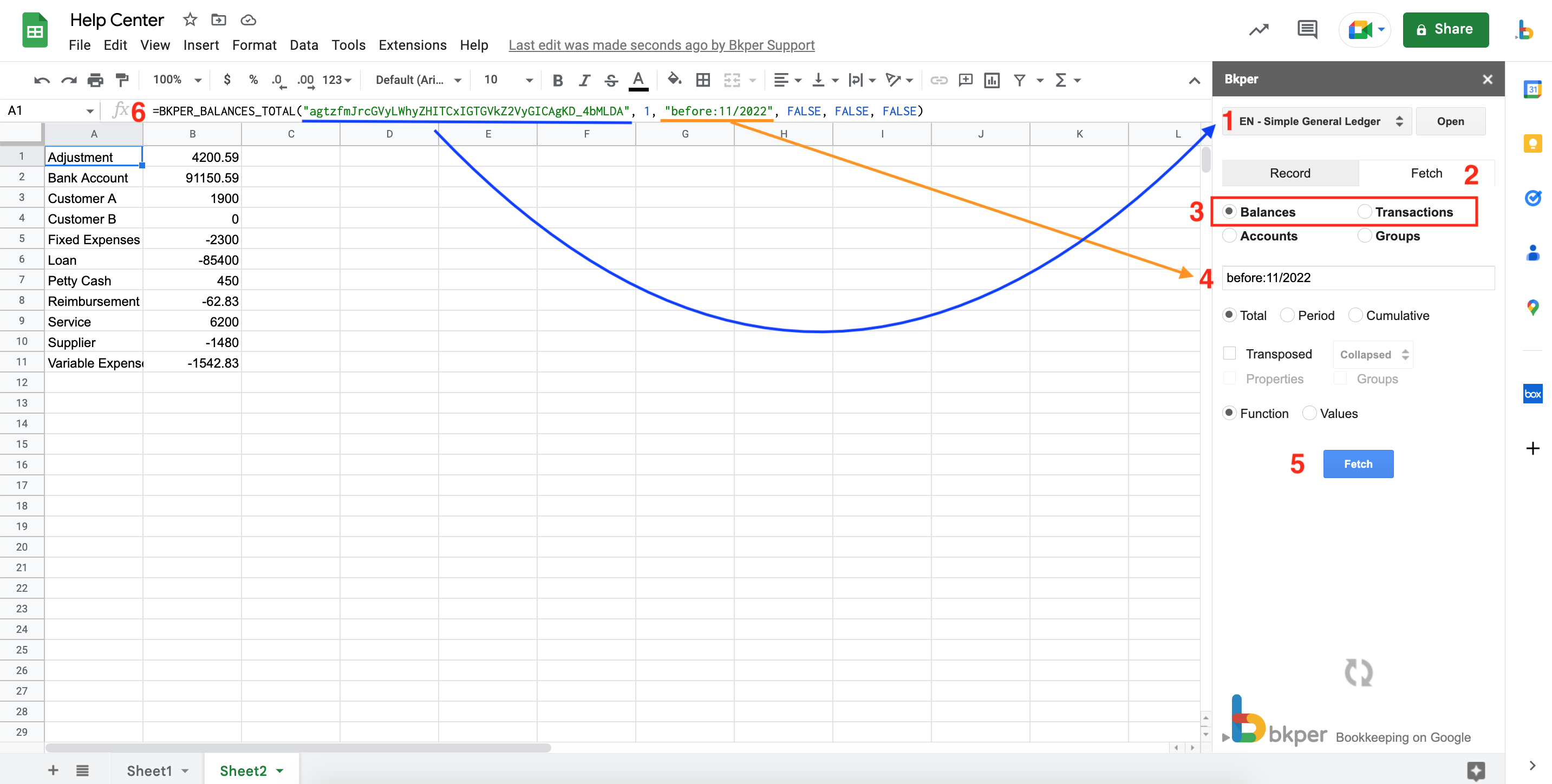
The Fetch tab offers several options for balance data:
| Option | Description |
|---|---|
| Total | Fetches total balance values according to the query |
| Period | Fetches balance value totals for the period defined in the query |
| Cumulative | Fetches cumulative values for the period defined in the query |
| Transposed | Shows results in columns instead of rows |
| Collapsed | When querying a Group, expands or collapses the levels under a parent Group |
Balance Totals Filtered by Hashtag
Queries with a Group or an Account combined with one hashtag fetch the balance value for that specific combination, enabling managerial accounting. For example, you can track costs against #products or travel expenses against #departments.
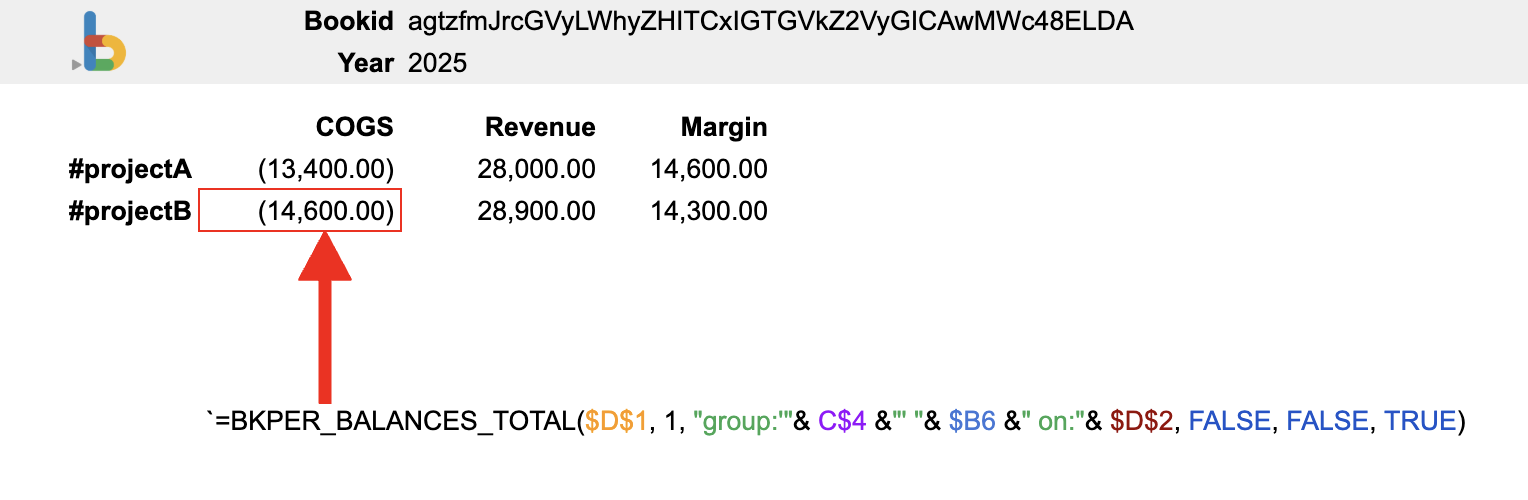
=BKPER_BALANCES_TOTAL(bookId, 1, "group:'COGS' #projectB on:2025", FALSE, FALSE, TRUE)See also: BKPER_BALANCES_TOTAL | BKPER_BALANCES_PERIOD | BKPER_BALANCES_CUMULATIVE
Transactions
Pull Transactions from your Book into Google Sheets for custom reporting, data analysis, or preparing batch edits that you can save back to Bkper.
How to Fetch Transactions
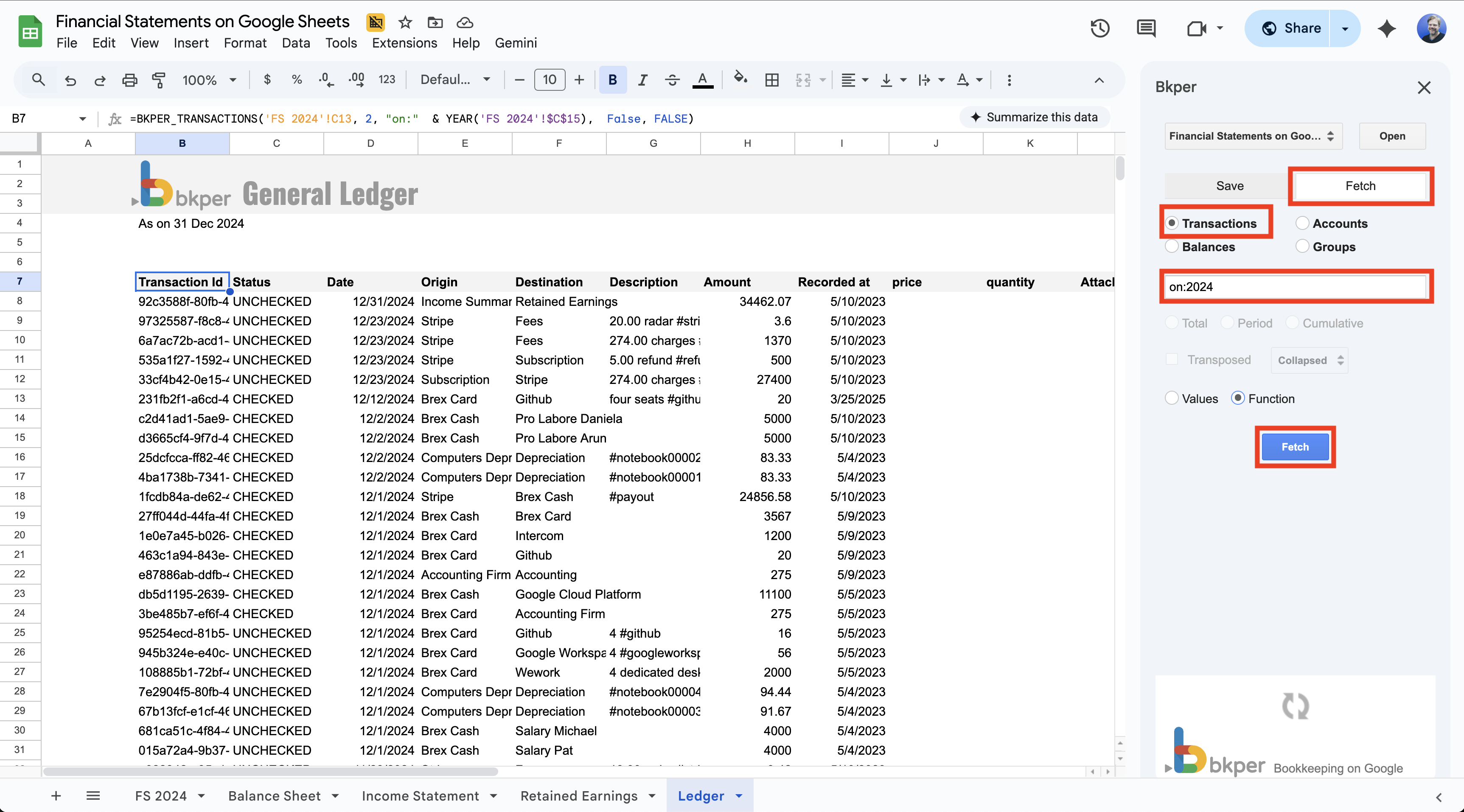
Open the Add-on Sidebar, select your Book, click the Fetch tab, and select Transactions.
Enter a query to filter which Transactions to fetch. For example, on:2024 retrieves all Transactions from the year 2024. You can use any Bkper query syntax to filter by date, Account, amount, or Custom Properties.
Output Columns
| Column | Description |
|---|---|
| Transaction Id | Unique identifier for each Transaction |
| Status | Current state: DRAFT, UNCHECKED, CHECKED, or TRASHED |
| Date | Transaction date |
| Origin | The Account where the amount comes from |
| Destination | The Account where the amount goes to |
| Description | Transaction description |
| Amount | Transaction amount |
| Balance | Running balance (only when filtering by a single permanent Account) |
| Recorded at | Date and time the Transaction was recorded |
| Custom Properties | Any Custom Properties on the Transaction |
| Remote Ids | External system identifiers, if any |
| Attachments | URLs or file attachments linked to the Transaction |
What You Can Do Next
Once your Transactions are in Google Sheets, you can:
- Create custom reports and charts
- Filter and analyze your financial data
- Edit Transactions and save them back to Bkper
See also: Bkper Query Guide | BKPER_TRANSACTIONS function
Accounts
Pull your Chart of Accounts from your Book into Google Sheets for reporting, batch editing, or creating templates for new Books.
How to Fetch Accounts
Open the Add-on Sidebar, select your Book, click the Fetch tab, and select Accounts.
If you want Group information included in your output, enable the Groups checkbox. This adds one or more Group columns showing which Groups each Account belongs to.
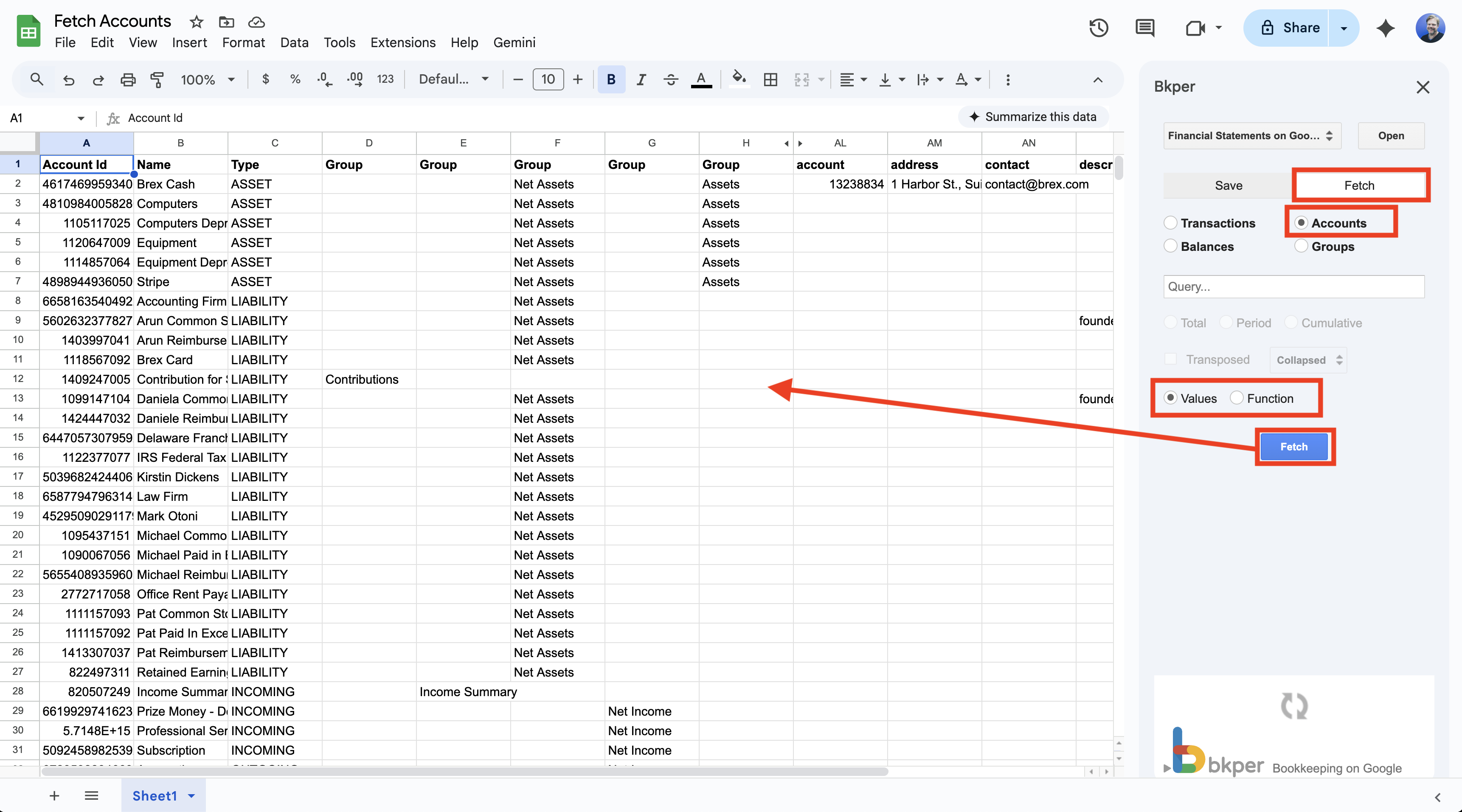
Output Columns
| Column | Description |
|---|---|
| Account Id | Unique identifier for each Account |
| Name | Account name |
| Type | Account type: ASSET, LIABILITY, INCOMING, or OUTGOING |
| Group | One or more columns showing Group membership (when Groups checkbox is enabled) |
| Custom Properties | All Custom Properties defined on your Accounts |
Accounts are sorted by type (Assets, Liabilities, Incoming, Outgoing) then alphabetically by name within each type.
What You Can Do Next
Once your Accounts are in Google Sheets, you can:
- Review and document your Chart of Accounts
- Modify Account names, types, Groups, or properties and save them back to Bkper
- Use the structure as a template to create a new Book with the same Account setup
See also: BKPER_ACCOUNTS function
Groups
Pull your Group structure from your Book into Google Sheets for documentation, templates, or batch editing.
How to Fetch Groups
Open the Add-on Sidebar, select your Book, click the Fetch tab, and select Groups.
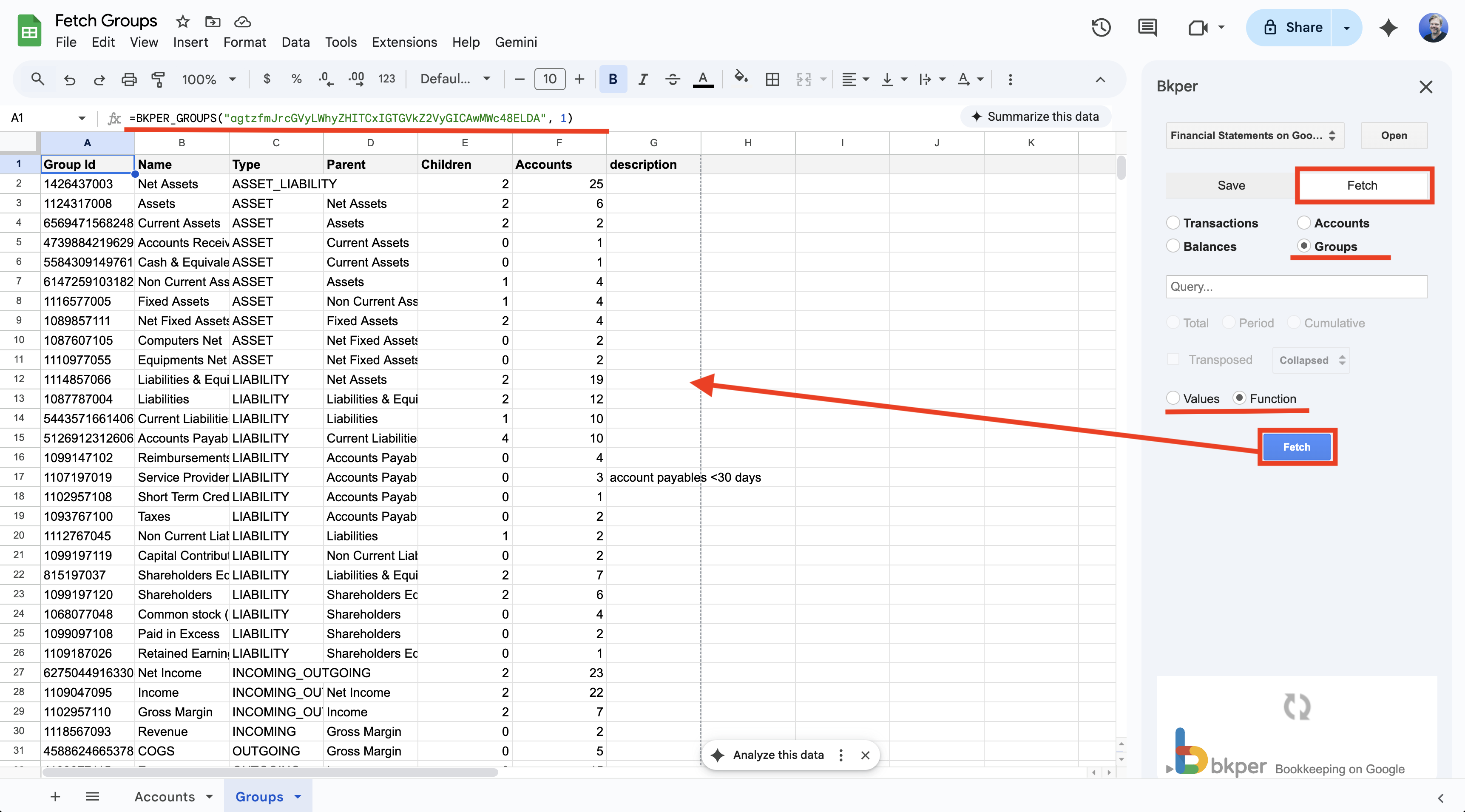
Output Columns
| Column | Description |
|---|---|
| Group Id | Unique identifier for each Group |
| Name | Group name |
| Type | Group type (see below) |
| Parent | Parent Group name (empty for root-level Groups) |
| Children | Number of child Groups within this Group |
| Accounts | Number of Accounts directly assigned to this Group |
| Custom Properties | All Custom Properties defined on your Groups |
Group Types
| Type | Description |
|---|---|
| ASSET | Group for Asset Accounts only |
| LIABILITY | Group for Liability Accounts only |
| INCOMING | Group for Incoming Accounts only |
| OUTGOING | Group for Outgoing Accounts only |
| ASSET_LIABILITY | Mixed Group for both Asset and Liability Accounts |
| INCOMING_OUTGOING | Mixed Group for both Incoming and Outgoing Accounts |
Groups are fetched in hierarchical order — parent Groups appear first, followed by their children. Within each level, Groups are sorted by type (permanent first) then alphabetically by name.
What You Can Do Next
Once your Groups are in Google Sheets, you can:
- Review and document your Group hierarchy
- Modify Group names, types, parents, or properties and create them in Bkper
- Use the structure as a template to create a new Book with the same Group setup
See also: BKPER_GROUPS function
Tips
Combining fetches — Use multiple fetch formulas across different tabs or sections of a Sheet to build comprehensive reports. For example, combine balance totals with a Transaction list for a detailed financial overview.
Working examples — The Financial Statements template and Profit and Loss template show complete reports built with Bkper Functions.
Backup — Fetch all your Transactions with a query like after:1900 to create a spreadsheet backup of your Book’s data.