
Bkper Functions
Reference for all Bkper custom functions in Google Sheets — balance functions for financial statements and data functions for listing records.
Bkper Functions fetch data from your Bkper Books directly into Google Sheets. The functions stay connected to your Books, so any updates in Bkper are automatically reflected in your spreadsheet.
If you are new to Bkper or not very familiar with Google Sheet functions, the Add-on Sidebar wizard can create the formulas for you.
How to Use
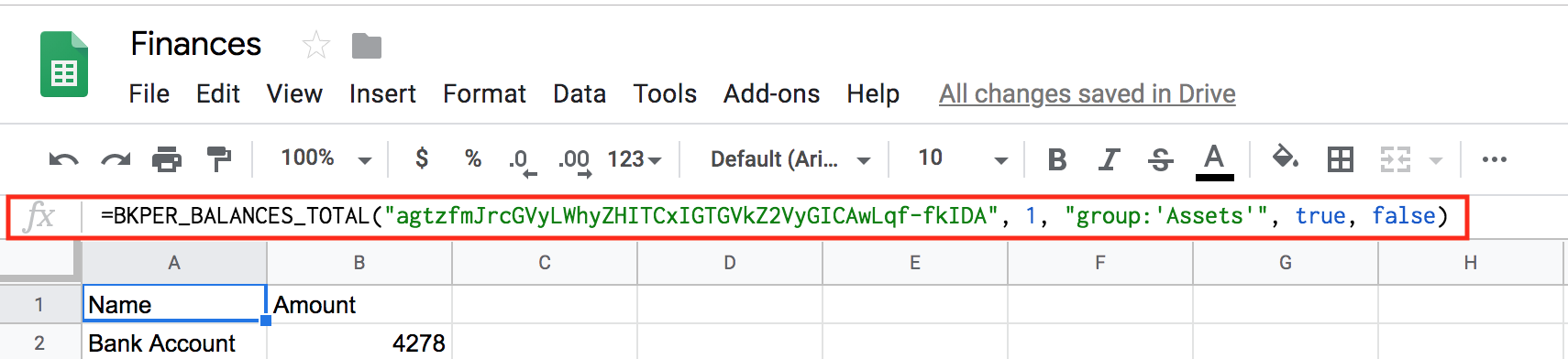
Install the Bkper Add-on, open a spreadsheet, and type an equal sign (=) followed by the function name. Google Sheets suggests available Bkper functions as you type.
Function Categories
Bkper offers two types of functions:
Balance Functions — Fetch aggregated balance values for reporting:
Data Functions — Fetch lists of records with full details:
Common Parameters
All Bkper Functions share two common parameters:
bookId — The unique identifier for your Bkper Book. You can find this in the Book URL or copy it from the Add-on Sidebar. Learn more about finding your Book ID.
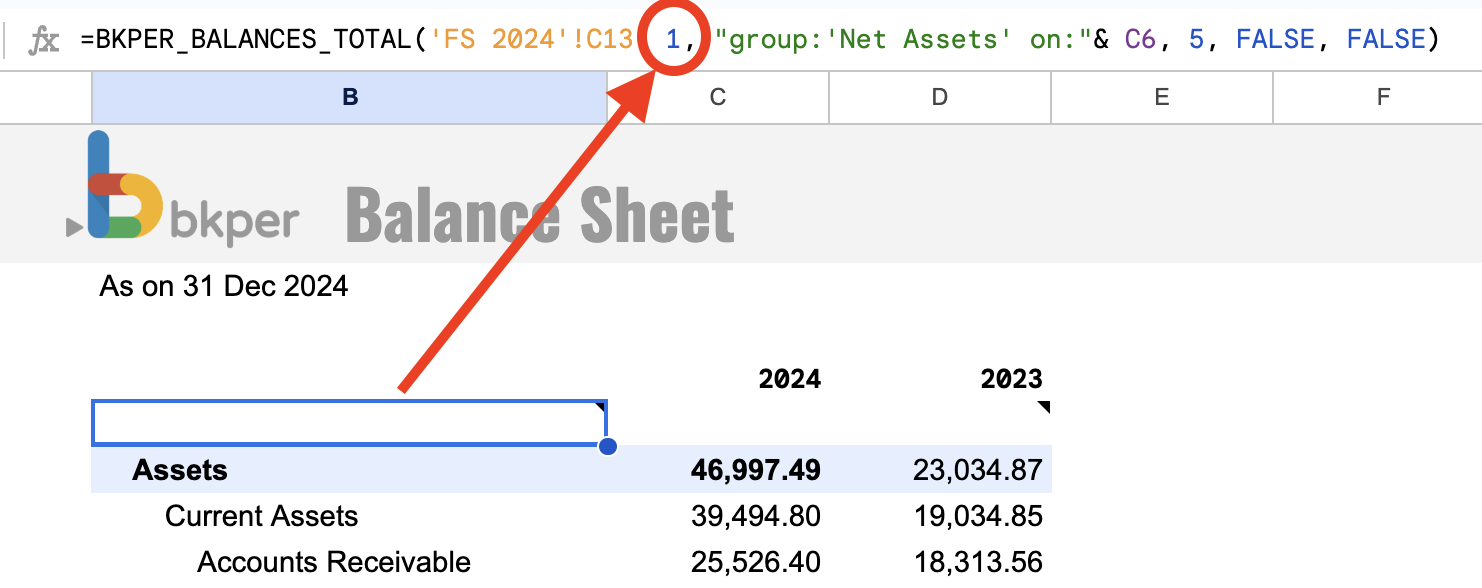
cache — A number used to control caching. Increase this value to force a fresh data fetch from Bkper.
Update Reports
Press Update from the Bkper extension menu to fetch the latest values from your Bkper Book into all Bkper Functions on your Sheet.
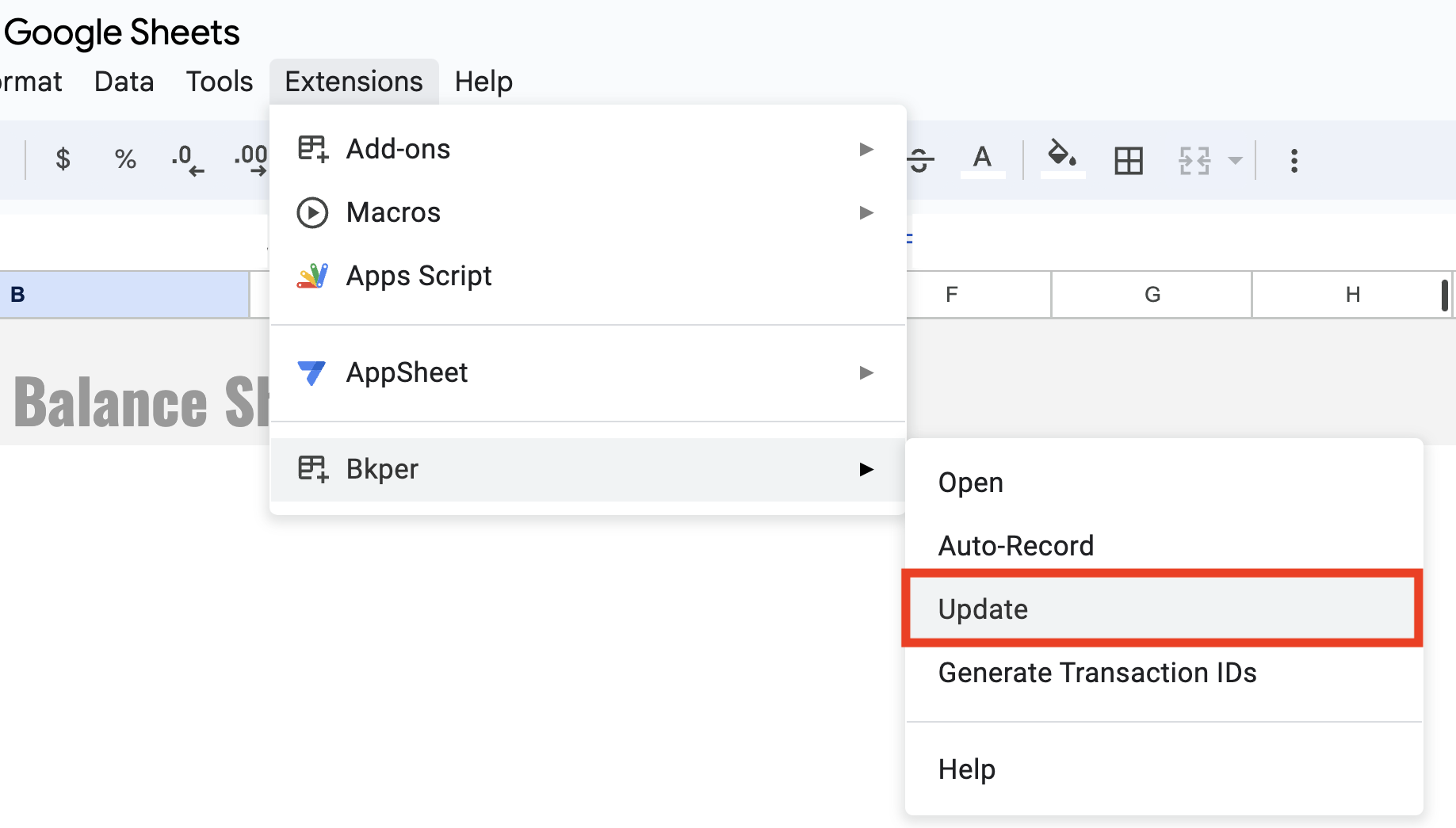
The Update function works by incrementing the cache parameter on all Bkper functions in your Sheet, forcing them to fetch fresh data.
Balance Functions
These functions return balance values and are ideal for building financial statements.
| Function | Purpose | Syntax |
|---|---|---|
| BKPER_BALANCES_TOTAL | Total balance for a period | =BKPER_BALANCES_TOTAL(bookId, cache, query, expanded, transposed, hideNames) |
| BKPER_BALANCES_PERIOD | Balance per period (monthly, yearly) | =BKPER_BALANCES_PERIOD(bookId, cache, query, expanded, transposed, hideDates) |
| BKPER_BALANCES_CUMULATIVE | Running balance over time | =BKPER_BALANCES_CUMULATIVE(bookId, cache, query, expanded, transposed, hideDates) |
| BKPER_BALANCES_TRIAL | Debit and credit columns | =BKPER_BALANCES_TRIAL(bookId, cache, query, expanded, transposed, hideNames) |
In addition to bookId and cache, all balance functions share these parameters:
| Parameter | Type | Description |
|---|---|---|
| query | string | The query to filter results |
| expanded | TRUE, FALSE, or number | Expand Group tree. TRUE expands the Group itself, -1 expands all subgroups, -2 expands all Accounts, any other number expands up to that level |
| transposed | boolean | TRUE to transpose the result |
The sixth parameter varies by function — either hideNames or hideDates — and is documented under each function below.
BKPER_BALANCES_TOTAL
Fetch the total balance values from Accounts and Groups.
=BKPER_BALANCES_TOTAL(bookId, cache, query, expanded, transposed, hideNames)| Parameter | Type | Description |
|---|---|---|
| hideNames | boolean | TRUE to hide Account/Group names |
Example:
=BKPER_BALANCES_TOTAL("agtzfmJrcGVyLWhyZHITCxIGTGVkZ2VyGICAgKD_4bMLDA", 1, "group:'Revenue' after:01/2016 before:01/2017", TRUE, FALSE, FALSE)The result is ordered from the largest to the smallest amount.
BKPER_BALANCES_PERIOD
Fetch periodic balance values from your Bkper Book. Returns Account balance values broken down by time period.
=BKPER_BALANCES_PERIOD(bookId, cache, query, expanded, transposed, hideDates)| Parameter | Type | Description |
|---|---|---|
| hideDates | boolean | TRUE to hide the dates row/column |
Example:
=BKPER_BALANCES_PERIOD("agtzfmJrcGVyLWhyZHITCxIGTGVkZ2VyGICAgKD_4bMLDA", 1, "group:'Revenue' after:01/2016 before:01/2017", TRUE, TRUE, FALSE)- The result is ordered by Account names.
- If not referenced in the query, the default period is monthly.
- The periodic balance values are fetched for the debits/credits in the specified time range.
- Useful for Profit & Loss statements.
BKPER_BALANCES_CUMULATIVE
Fetch cumulative Account balance values from your Bkper Book. Returns running balances over a time range.
=BKPER_BALANCES_CUMULATIVE(bookId, cache, query, expanded, transposed, hideDates)| Parameter | Type | Description |
|---|---|---|
| hideDates | boolean | TRUE to hide the dates row/column |
Example:
=BKPER_BALANCES_CUMULATIVE("agtzfmJrcGVyLWhyZHITCxIGTGVkZ2VyGICAgKD_4bMLDA", 1, "group:'Assets' after:01/2016 before:01/2017", TRUE, TRUE, FALSE)- The result is ordered by Account names.
- With Asset and Liability Account types, the balance value of the previous period is considered.
- With Incoming and Outgoing Account types, the balance value starts at 0 and accumulates over the fetched period.
- Useful for Balance Sheets.
BKPER_BALANCES_TRIAL
Fetch the trial balance values from Accounts and Groups, showing debit and credit columns.
=BKPER_BALANCES_TRIAL(bookId, cache, query, expanded, transposed, hideNames)| Parameter | Type | Description |
|---|---|---|
| hideNames | boolean | TRUE to hide Account/Group names |
Example:
=BKPER_BALANCES_TRIAL("agtzfmJrcGVyLWhyZHITCxIGTGVkZ2VyGICAgKD_4bMLDA", 1, "group:'Revenue' after:01/2016 before:01/2017", TRUE, FALSE, FALSE)Data Functions
These functions return complete record listings. All available data is included automatically — IDs, Groups, and Custom Properties are always fetched, making the functions simpler to use.
BKPER_ACCOUNTS
Fetch the Chart of Accounts from your Bkper Book into Google Sheets. Returns a complete listing of Accounts with their types, Group memberships, and Custom Properties.
=BKPER_ACCOUNTS(bookId, cache, group)| Parameter | Type | Description |
|---|---|---|
| group | string (optional) | Filter Accounts by a specific Group name or Group ID |
Examples:
Fetch all Accounts:
=BKPER_ACCOUNTS("agtzfmJrcGVyLWhyZHITCxIGTGVkZ2VyGICAgKD_4bMLDA", 1)Fetch only Accounts in the “Expenses” Group:
=BKPER_ACCOUNTS("agtzfmJrcGVyLWhyZHITCxIGTGVkZ2VyGICAgKD_4bMLDA", 1, "Expenses")Output Columns
| Column | Description |
|---|---|
| Account Id | Unique identifier for each Account |
| Name | Account name |
| Type | Account type: ASSET, LIABILITY, INCOMING, or OUTGOING |
| Group columns | One column per Group in your Book, showing Group membership |
| Custom Properties | Any Custom Properties defined on the Accounts |
The optional group parameter fetches only Accounts belonging to a specific Group. You can pass either the Group name or the Group ID. If the Group has child Groups, Accounts from all child Groups are also included in the result.
Accounts are sorted first by type (Asset, Liability, Incoming, Outgoing), then alphabetically by name within each type.
BKPER_GROUPS
Fetch all Groups from your Bkper Book into Google Sheets. Returns a complete listing of Groups with their hierarchy, Account counts, and Custom Properties.
=BKPER_GROUPS(bookId, cache)Example:
=BKPER_GROUPS("agtzfmJrcGVyLWhyZHITCxIGTGVkZ2VyGICAgKD_4bMLDA", 1)Output Columns
| Column | Description |
|---|---|
| Group Id | Unique identifier for each Group |
| Name | Group name |
| Type | Group type: ASSET, LIABILITY, INCOMING, OUTGOING, or mixed types |
| Parent | Name of the parent Group, if any |
| Children | Number of child Groups |
| Accounts | Number of Accounts in the Group |
| Custom Properties | Any Custom Properties defined on the Groups |
Group Types
Groups can have single or mixed types:
| Type | Description |
|---|---|
| ASSET | Groups containing only Asset Accounts |
| LIABILITY | Groups containing only Liability Accounts |
| INCOMING | Groups containing only Incoming Accounts |
| OUTGOING | Groups containing only Outgoing Accounts |
| ASSET_LIABILITY | Groups that can contain both Asset and Liability Accounts |
| INCOMING_OUTGOING | Groups that can contain both Incoming and Outgoing Accounts |
Groups are sorted hierarchically — parent Groups appear first, followed by their children. Within each level, Groups are sorted by type and then alphabetically by name.
BKPER_TRANSACTIONS
Fetch Transactions from your Bkper Book into Google Sheets. Returns all Transactions matching your query, with full details including IDs, status, Custom Properties, and attachments.
=BKPER_TRANSACTIONS(bookId, cache, query)| Parameter | Type | Description |
|---|---|---|
| query | string | The query to filter Transactions |
Example:
=BKPER_TRANSACTIONS("agtzfmJrcGVyLWhyZHITCxIGTGVkZ2VyGICAgKD_4bMLDA", 1, "acc:'Bank Account' after:01/2019")Output Columns
| Column | Description |
|---|---|
| Transaction Id | Unique identifier for each Transaction |
| Status | Current state: DRAFT, UNCHECKED, CHECKED, or TRASHED |
| Date | Transaction date |
| Origin | The Account where the amount comes from |
| Destination | The Account where the amount goes to |
| Description | Transaction description |
| Amount | Transaction amount |
| Balance | Running balance (only when filtering by a permanent Account) |
| Recorded at | Date and time the Transaction was recorded |
| Custom Properties | Any Custom Properties on the Transaction |
| Remote Ids | External system identifiers, if any |
| Attachments | URLs or file attachments linked to the Transaction |
Transaction Status
Each Transaction has one of four status values:
| Status | Description |
|---|---|
| DRAFT | Transaction recorded but not yet posted |
| UNCHECKED | Transaction posted but not yet verified |
| CHECKED | Transaction posted and verified |
| TRASHED | Transaction moved to trash |
You can filter by status in your query using is:draft, is:unchecked, is:checked, or is:trashed.
Balance Column
The Balance column only appears when your query filters by a single permanent Account (Asset or Liability). It shows the running balance of that Account at each Transaction.
This query will include the Balance column:
=BKPER_TRANSACTIONS(bookId, 1, "acc:'Bank Account'")This query will not include Balance (filtering by a non-permanent Account):
=BKPER_TRANSACTIONS(bookId, 1, "acc:'Office Supplies'")Reorder Results
Use the Google Sheets QUERY function to reorder Bkper function results. For example, given a Bkper function result in the range A2:B5:
=QUERY(A2:B5, "Select A, B order by A desc")asc = A to Z (ascending) | desc = Z to A (descending)
Working Examples
The template gallery contains working examples of Bkper Books with corresponding Financial Statements in Google Sheets.
In the Financial Statements that accompany the Simple General Ledger Template, cells with Bkper formulas are marked grey with a note indicating Bkper Formula.
Video Instructions
6 minute video explaining Bkper Functions
Limitations
Bkper Functions use Google Apps Script, which has a 30-second runtime limit per function call. This means you cannot fetch unlimited amounts of data in a single function.
If you hit this limit, consider:
- Using balance functions instead of fetching all Transactions
- Narrowing your time range (e.g.,
after:$m-12 before:$m-6) - Using the CSV Export App for large data exports
See the full Google Apps Script quotas for more details.
Troubleshooting
For issues with Bkper Functions, see Known Issues.