
Recording Data
Record Transactions, Accounts, and Groups from Google Sheets into your Bkper Books — including column headers, Unique IDs, and Auto Record.
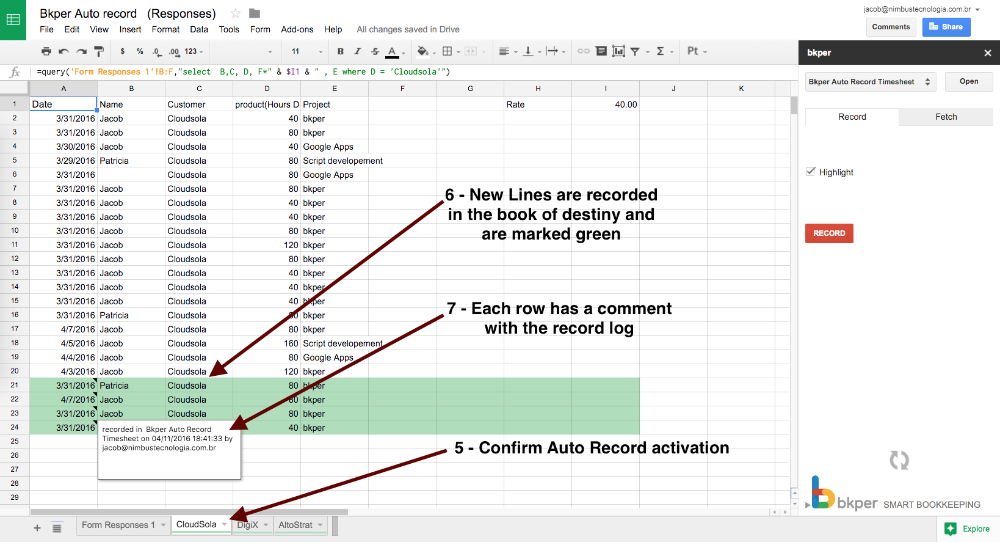
Recording pushes data from your Google Sheet into a Bkper Book. Open the Add-on Sidebar, select a Book, navigate to the Save tab, choose a data type (Transactions, Accounts, or Groups), select the cells containing your data, and press Save. Each row creates or updates one record in Bkper. Successfully saved rows are highlighted in green.
Column Headers
The Add-on uses the first row of your data range as a header to understand each column’s meaning. Headers are recognized in two ways:
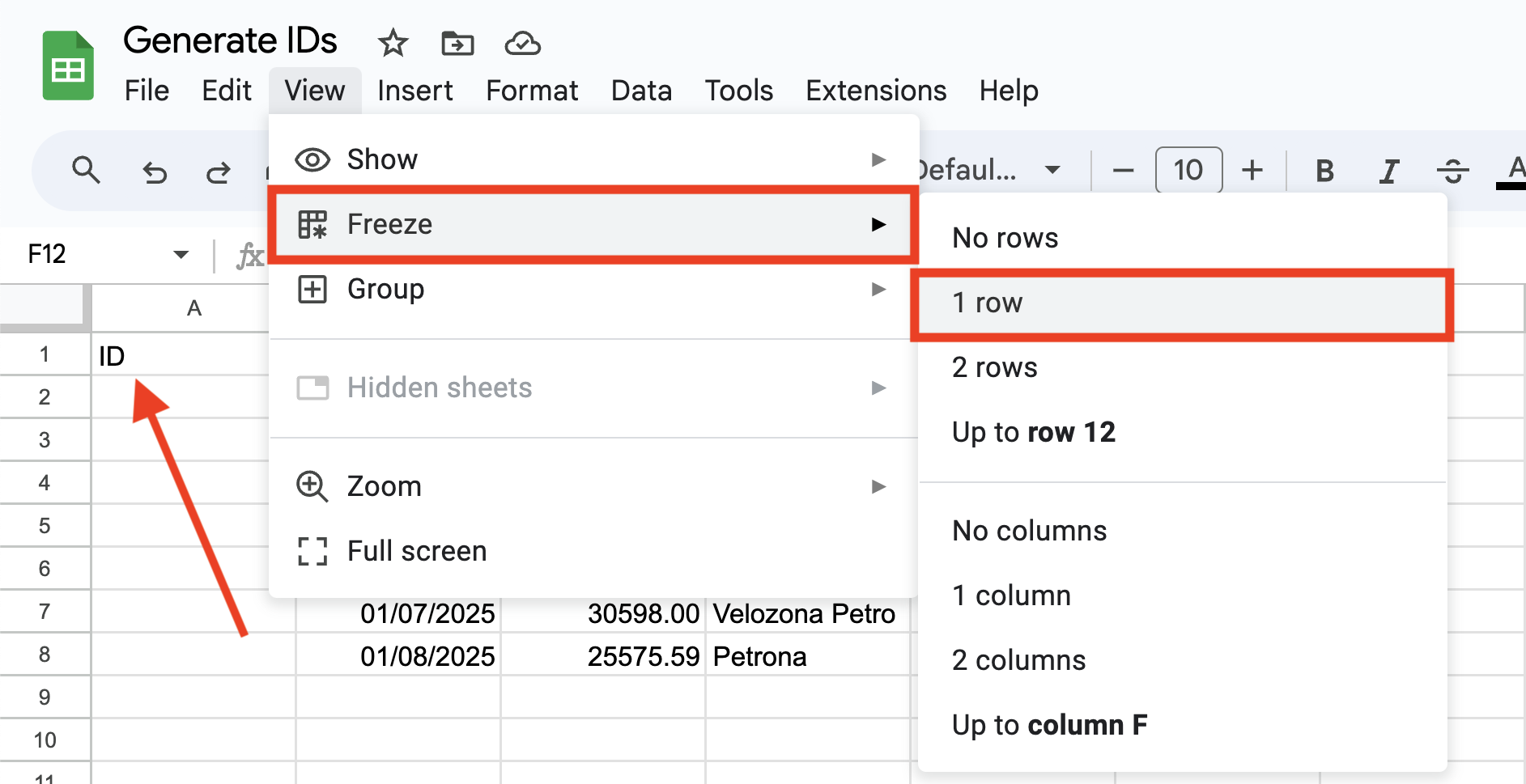
Frozen first row — When you freeze the first row (View >> Freeze >> 1 row), the Add-on always treats it as a header, regardless of the column names.
Recognized column names — Even without freezing, the Add-on recognizes specific column names and maps your data correctly. This gives you flexibility when working with data exported from other systems.
Recognized Column Names
The following column names are automatically recognized when saving Transactions:
| Column Name | Aliases | What it does |
|---|---|---|
| Date | — | The post date of the Transaction |
| Amount | — | The amount on the Transaction |
| From | Origin, From Account, Credit Account | The From Account on the Transaction |
| To | Destination, To Account, Debit Account | The To Account on the Transaction |
| Description | — | The description, including external URLs |
| ID | — | Unique identifier for generating IDs |
| Transaction ID | — | Used to update existing Transactions |
| BookId | — | Target Book ID when saving to multiple Books |
| Attachment | — | File attachment URL |
When using recognized column names, you can place them in any order on your Sheet.
When No Header Is Recognized
If the first row is not frozen and contains no recognized column names, the Add-on falls back to positional parsing. In this mode, the order of the data determines its meaning — for example, the first Account name found on a row becomes the From Account.
Custom Properties
Any column with a header name that is not a recognized system column becomes a Custom Property. The column header becomes the property key and the cell value becomes the property value.
For example, a column named project_code with a cell value of PRJ-2025 records the Custom Property project_code: PRJ-2025 on the record.
To use Custom Properties, freeze the first row to ensure consistent header recognition.
Ignoring Columns
Columns with blank headers are ignored when saving data. This is useful when your Sheet contains additional information — such as checkboxes for internal approval workflows — that should not be recorded in Bkper.
Header Summary
| Scenario | Header Recognition | Custom Properties |
|---|---|---|
| First row frozen | Always recognized | Supported |
| Recognized column names (not frozen) | Recognized | Supported |
| No freeze, no recognized names | Falls back to positional parsing | Not supported |
Transactions
Record new Transactions or update existing ones directly from your spreadsheet. Whether you’re uploading bank data, syncing invoices, or bulk-editing Transactions you previously fetched from Bkper, the Save tab handles it all.
Transaction Columns
The Add-on recognizes these column headers for Transactions:
| Column Header | Description |
|---|---|
| Date | Transaction date |
| Amount | Transaction amount |
| Origin / From / Credit Account | The From Account |
| Destination / To / Debit Account | The To Account |
| Description | Transaction description |
| Attachment | URL to attachment |
| Id | Remote ID for deduplication |
| BookId | Target Book ID (overrides selected Book in the sidebar) |
| Transaction Id | Existing Transaction ID (for updates) |
| Status | Transaction state — read-only |
| Recorded at / Created at | Creation timestamp — read-only |
| Balance | Account balance — read-only |
When both Origin/From and Destination/To Accounts are provided along with an Amount, the Transaction is complete and is posted directly to your Book. Otherwise, it is saved as a draft.
Remote ID — A reference to the original identifier from another system or Bkper Book (such as a bank transaction number, invoice ID, or another Book’s Transaction ID). Bkper uses Remote IDs to prevent duplicates — if a Transaction with the same Remote ID already exists, it won’t be recorded again.
Saving New vs. Updating Existing
The Add-on determines whether to record a new Transaction or update an existing one based on the Transaction Id column:
| Transaction Id Column | Action |
|---|---|
| Empty or missing | Records a new Transaction |
| Contains an existing ID | Updates the existing Transaction |
This enables a powerful workflow for bulk editing:
- Fetch Transactions from Bkper to your Sheet (using the Fetch tab)
- Edit the data directly in your spreadsheet (amounts, descriptions, properties, etc.)
- Save the changes back to Bkper — the Add-on updates each Transaction by its Transaction Id
When updating Transactions, the following columns are read-only and will be ignored: Transaction Id, Status, Recorded at, Created at, and Balance.
Transaction Notes
Filtered rows — When saving from a filtered Sheet, all rows in the selection are processed — including hidden rows, not just visible ones.
Duplicate IDs — If you include an Id column (Remote ID), the Add-on flags duplicate values in red to help you avoid recording duplicate Transactions.
Generating Unique IDs
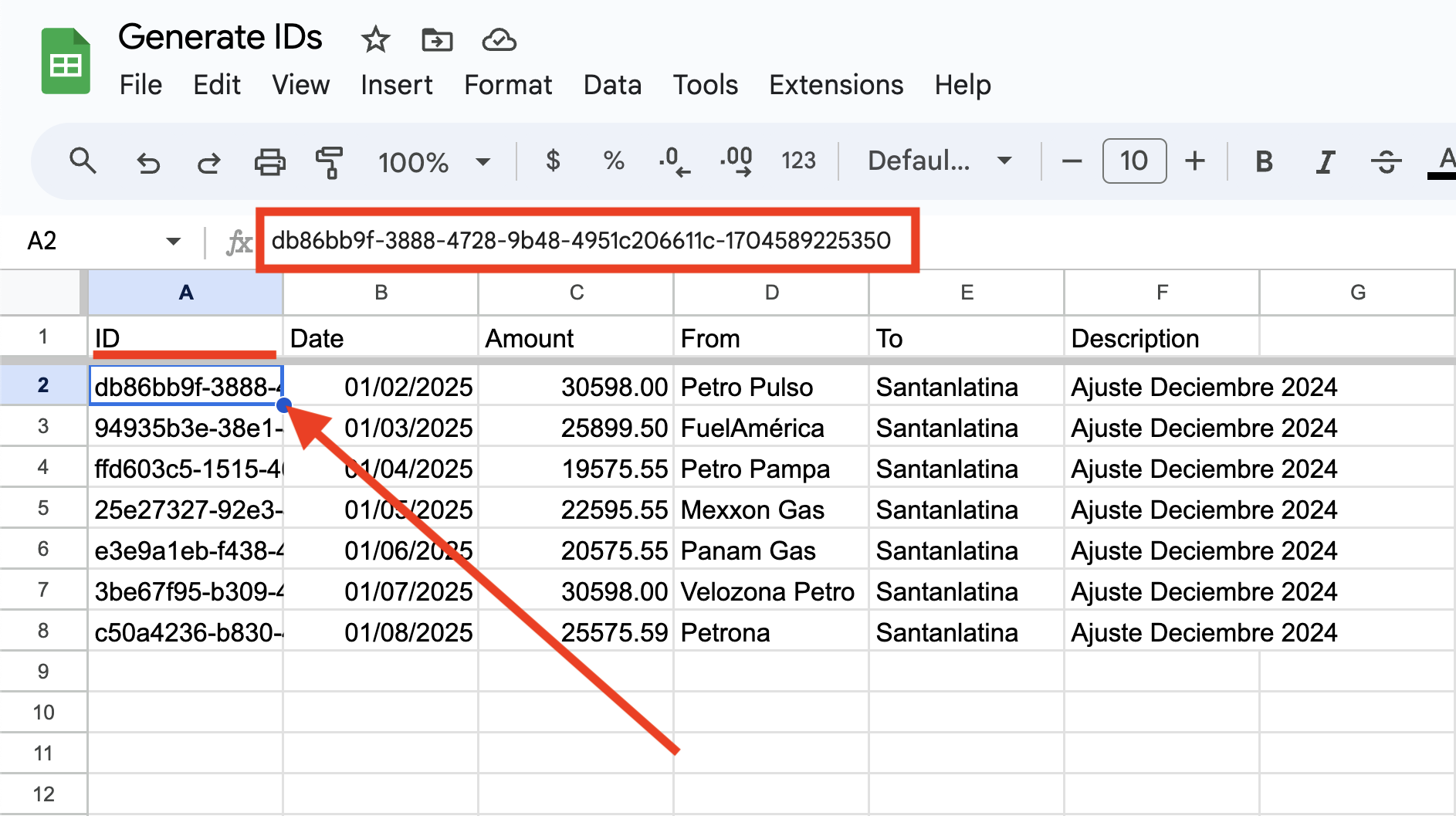
Assigning a unique ID to records on Google Sheets makes Transactions idempotent — a Transaction with a unique ID cannot be recorded twice in the same Book. Unique IDs prevent creating duplicate Transactions.
From Bkper’s perspective, a unique ID from a Sheet (or elsewhere) is a Remote ID, accessible via the REST API or BkperApp (Google Apps Script). This makes tasks along a financial workflow beyond Bkper easy to automate.
How to Generate IDs
Freeze the first row of your Sheet with the column headers, and add an ID column alongside the system properties.
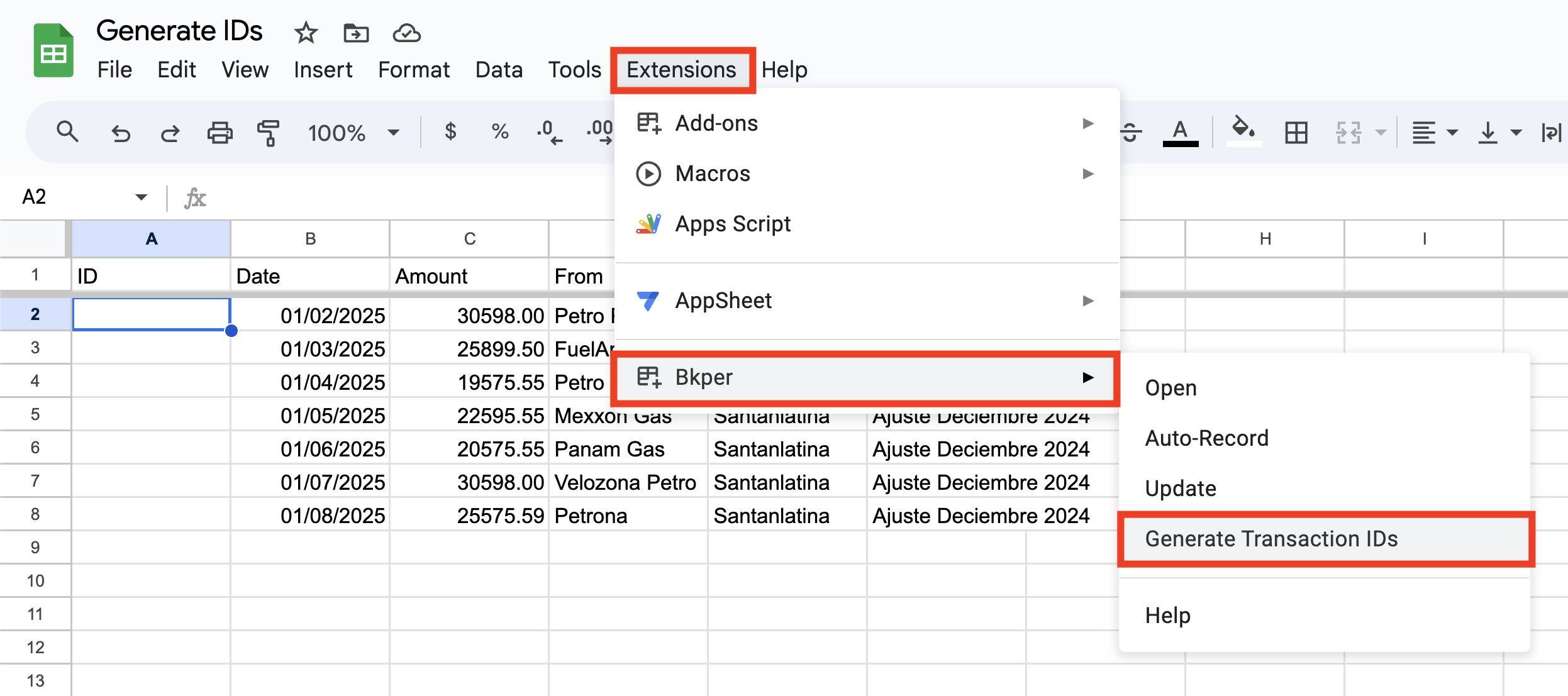
After freezing the first row, go to the Bkper extension and select Generate Transaction IDs.
The unique IDs are inserted in each row that has data.
Auto Record
Activate Auto Record on a tab, and each new row added to a Google Sheet is automatically recorded as a new entry in your Bkper Book. This is especially handy when data flows into your Sheet automatically — from a Google Form, a QUERY formula, or another integration.
Setting Up Auto Record
Open the Add-on Sidebar from the Add-on menu and select the Book where you want to record the Transactions. Prepare the data you want to record automatically.
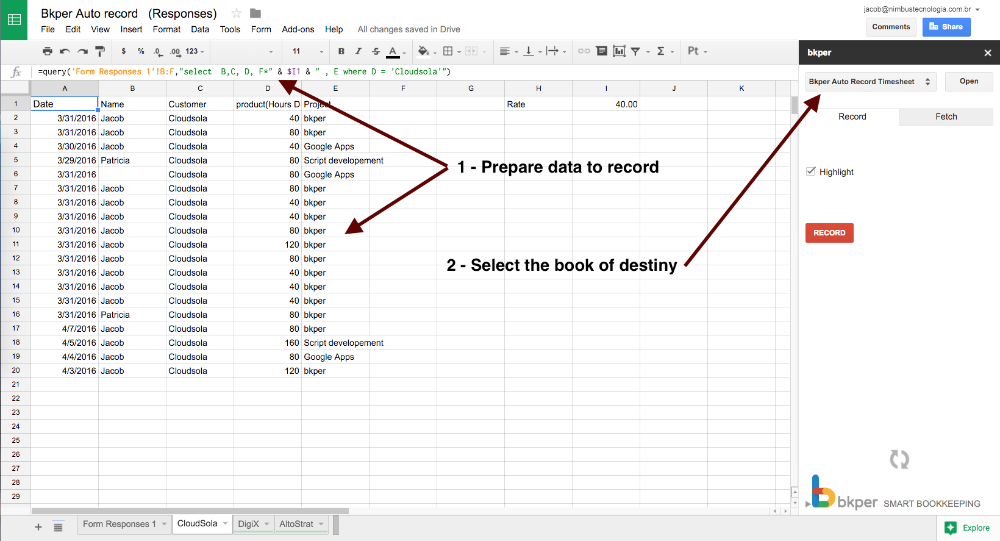
Select Auto Record on the Bkper Add-on menu.
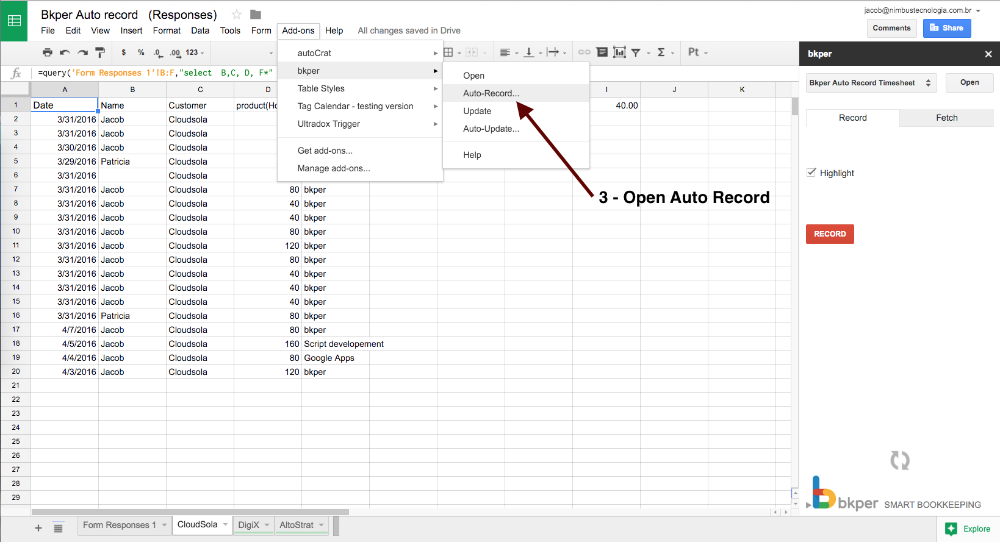
Toggle the Auto Record switch to YES.

New rows on the tab are now automatically recorded in your Bkper Book.
Accounts
Create Accounts in batch directly from your spreadsheet. Instead of manually creating each Account in Bkper, you can create several at once, defining their Type and assigning them to Groups at the same time.
Account Columns
| Column Header | Description |
|---|---|
| Name | Account name (required) |
| Type | Account type: ASSET, LIABILITY, INCOMING, or OUTGOING |
| Group | Group to assign the Account to |
| BookId | Target Book ID (overrides selected Book in the sidebar) |
| Account Id | Existing Account ID — read-only (for future updates) |
An Account must have a Name to be created. If Type is not specified, the Account defaults to ASSET.
You can assign an Account to multiple Groups by including multiple Group columns in your Sheet. Each column titled “Group” assigns the Account to the Group specified in the corresponding cell value.
Account Notes
Creating Accounts only — Currently, the Save function creates new Accounts. Updating existing Accounts from Google Sheets is not yet supported but is planned for a future release. The Account Id column in fetched data is included to enable this functionality when available.
Account types — Valid types are ASSET, LIABILITY, INCOMING, and OUTGOING. Learn more about Account Types.
Groups
Create Groups in batch directly from your spreadsheet. Instead of manually creating each Group in Bkper, you can create several at once, defining their hierarchy by assigning parent Groups.
Group Columns
| Column Header | Description |
|---|---|
| Name | Group name (required) |
| Type | Group type: ASSET, LIABILITY, INCOMING, OUTGOING, or mixed (e.g., ASSET_LIABILITY) |
| Parent | Name of the parent Group (for creating hierarchies) |
| BookId | Target Book ID (overrides selected Book in the sidebar) |
| Group Id | Existing Group ID — read-only (for future updates) |
| Children | Number of child Groups — read-only |
| Accounts | Number of Accounts in Group — read-only |
A Group must have a Name to be created.
Group Notes
Creating Groups only — Currently, the Save function creates new Groups. Updating existing Groups from Google Sheets is not yet supported but is planned for a future release. The Group Id column in fetched data is included to enable this functionality when available.
Group types — Groups can have a specific type (ASSET, LIABILITY, INCOMING, OUTGOING) or a mixed type (ASSET_LIABILITY for permanent Accounts, INCOMING_OUTGOING for non-permanent Accounts). Learn more about Groups.
Building hierarchies — Use the Parent column to create nested Group structures. The parent Group must exist (either already in Bkper or created in a row above in your Sheet).
Tips
Bulk operations — Prepare large datasets in Google Sheets and save them in one operation. The Add-on processes each row independently, so partial failures don’t prevent other rows from being saved.
Error handling — Rows that fail to save are highlighted in red. Check the error message to understand what went wrong (missing required fields, invalid Account names, etc.).
Troubleshooting — For common issues with saving data, see Known Issues.