
Known Issues
Troubleshooting guide for common issues with Bkper Functions in Google Sheets.
If you have trouble using Bkper Functions, the solutions below address the most common issues.
Where Can I Find the Book ID?
The Book ID is located in the URL of your Bkper Book.

You can also copy it from the Add-on Sidebar or learn more about finding your Book ID.
How to Identify an Error
When executing a function, you may encounter an error. Identify errors by hovering the mouse over cells showing #ERROR! or #REF results.
1. #NAME? Error: Unknown Function
When you copy a Google Sheet that contains Bkper Functions (such as one of Bkper’s templates), Google Sheets may not immediately recognize the copied functions. The Sheet displays a #NAME? error in cells that call a Bkper Function.
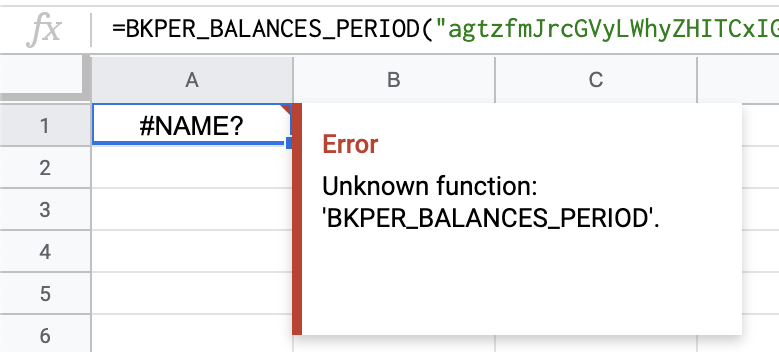
Often this error clears itself, but it can take up to 24 hours. Try running Extensions >> Bkper >> Update to trigger recognition.
If the problem persists, try these solutions (or a combination):
1. The Add-on is not installed — Install the Add-on from the Google Workspace Marketplace, open it from Extensions >> Bkper >> Open, and reload your Google Sheet.
2. The Add-on hasn’t been opened yet — Open the Add-on once from Extensions >> Bkper >> Open.
3. The spreadsheet copy is broken — Make another copy of the broken spreadsheet. If this works, you can track this issue for a future fix.
4. The Add-on installation is broken — Uninstall the Bkper Add-on and install it again.
2. Error: Invalid Query
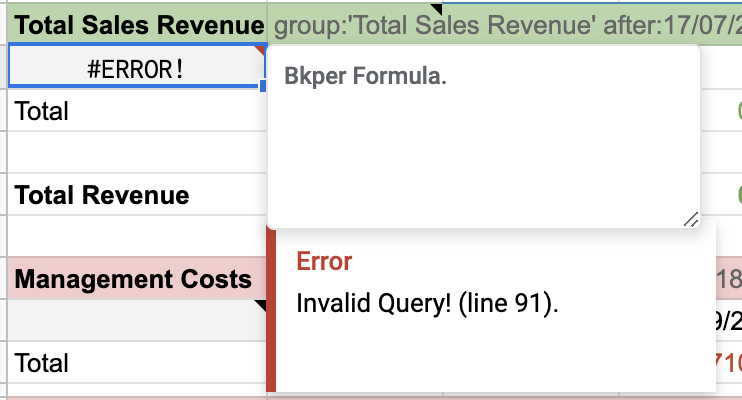
This means the query you are running is not valid. Copy the query and paste it in the Bkper dashboard search to verify it works:

Some tips:
- When building dynamic queries with
TEXT()and&concatenation, construct the query in a cell first, then reference that cell in the Bkper function (as in the Simple General Ledger Report example) - Check that the date format in your query matches the format in your Book Settings
- Check quotes around Account and Group names
- Check the operators in the Query Guide
3. Error: Array Result Was Not Expanded
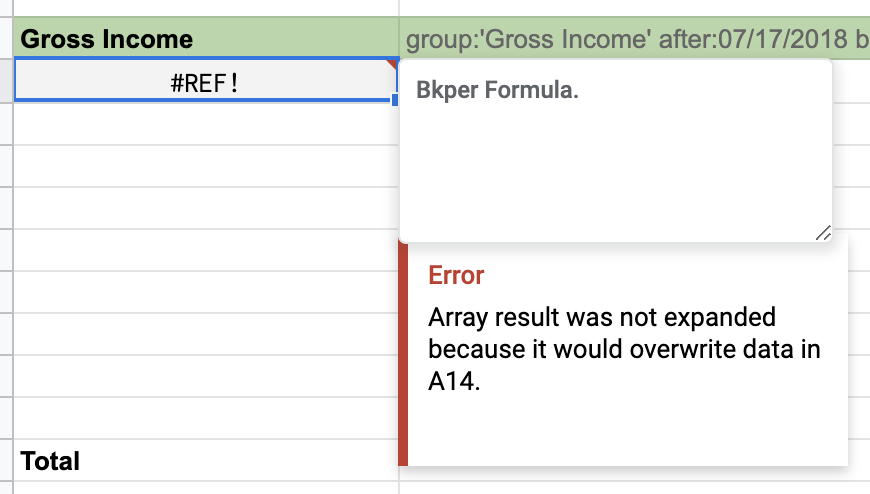
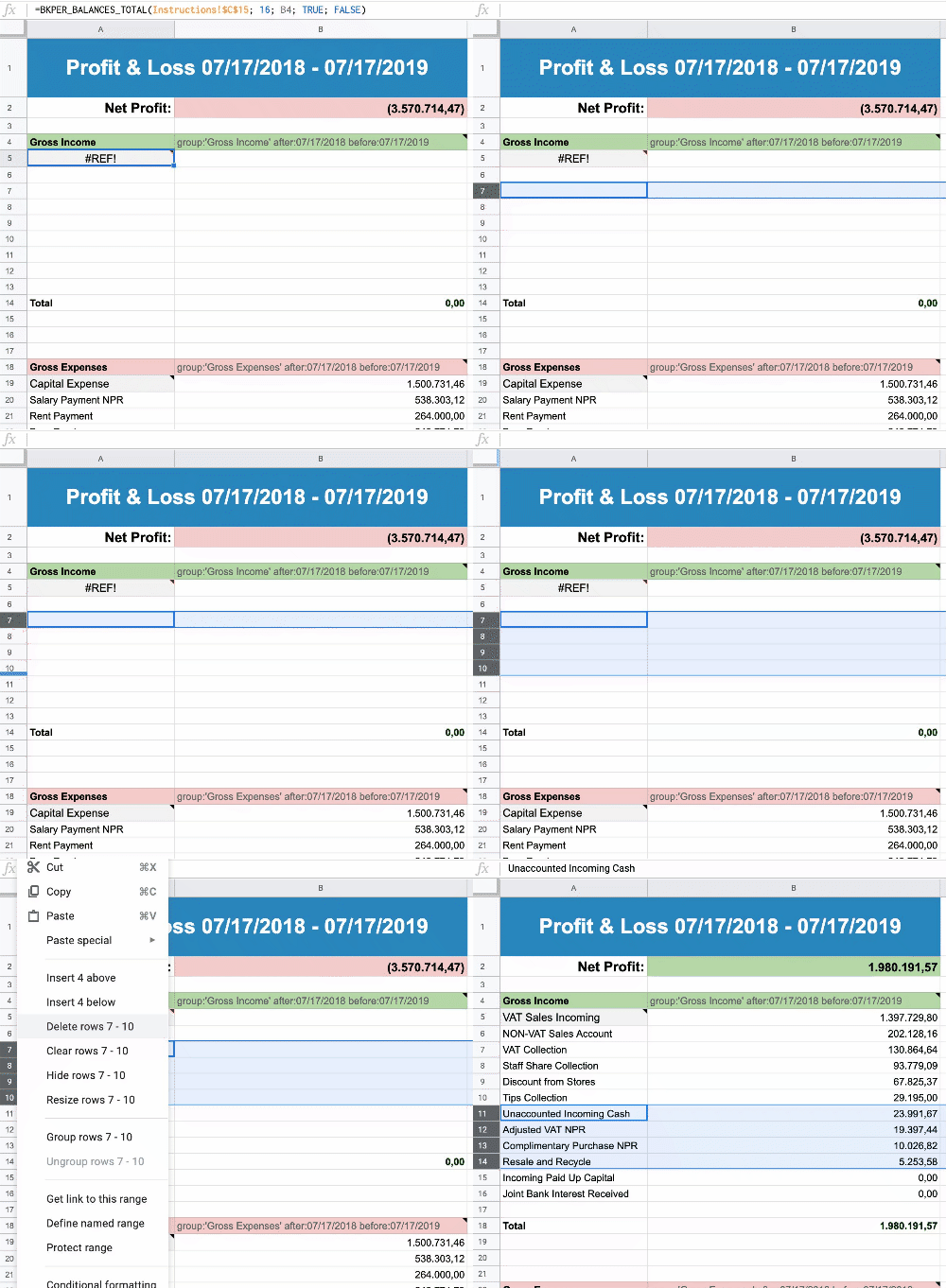
This means the result returned from Bkper needs more rows in your spreadsheet. Select some rows in the middle of the dataset and add more rows until the result appears:
See also: Google Sheets Add-on | Bkper Functions Reference