
Portfolio Bot
Track quantities, calculate realized profits and losses, and manage revaluations for financial instruments with the Bkper Portfolio Bot.
The Portfolio Bot (formerly the Stock Bot) tracks quantities, profits and losses, and revaluations related to financial instrument operations. Profit or Loss is calculated on a FIFO (First-In, First-Out) basis.
How it works
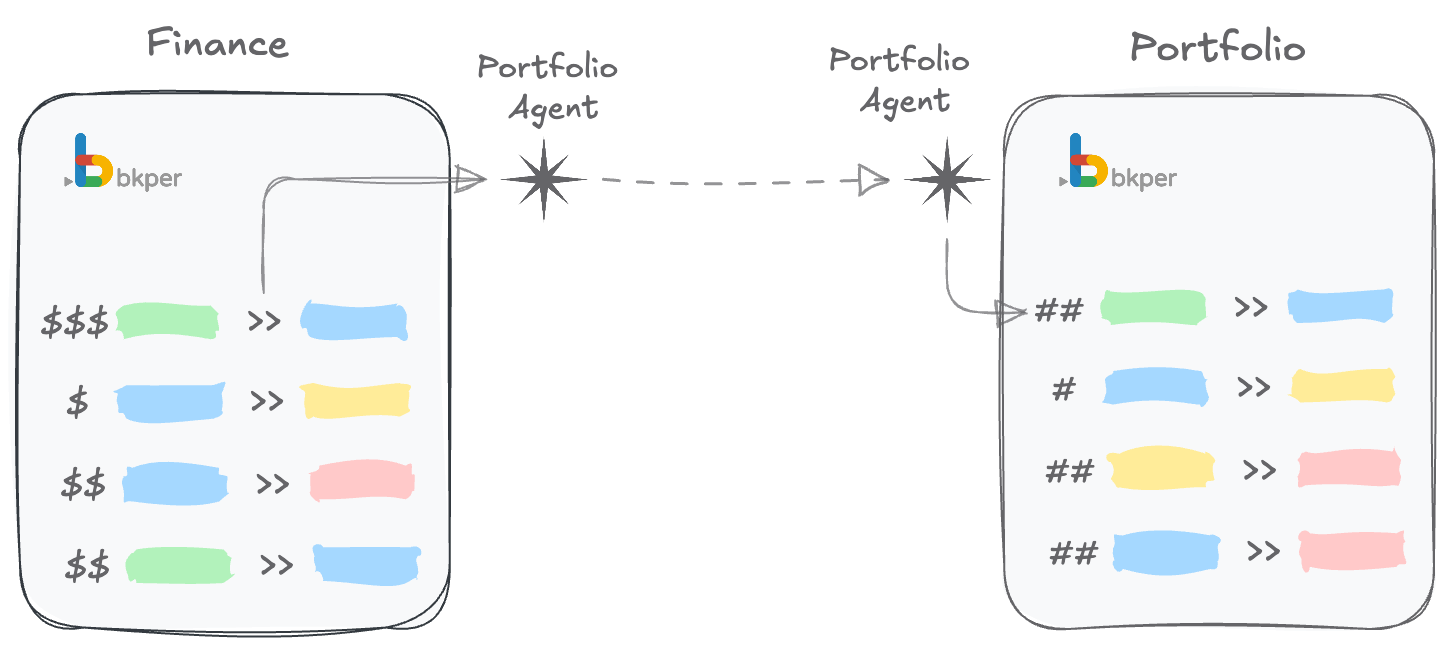
Bkper uses separate books to track different entities: a Financial Book tracks money and a Portfolio Book tracks quantities of securities or other assets.
All books must belong to one Bkper Collection so the Portfolio Bot knows its boundaries of operation.
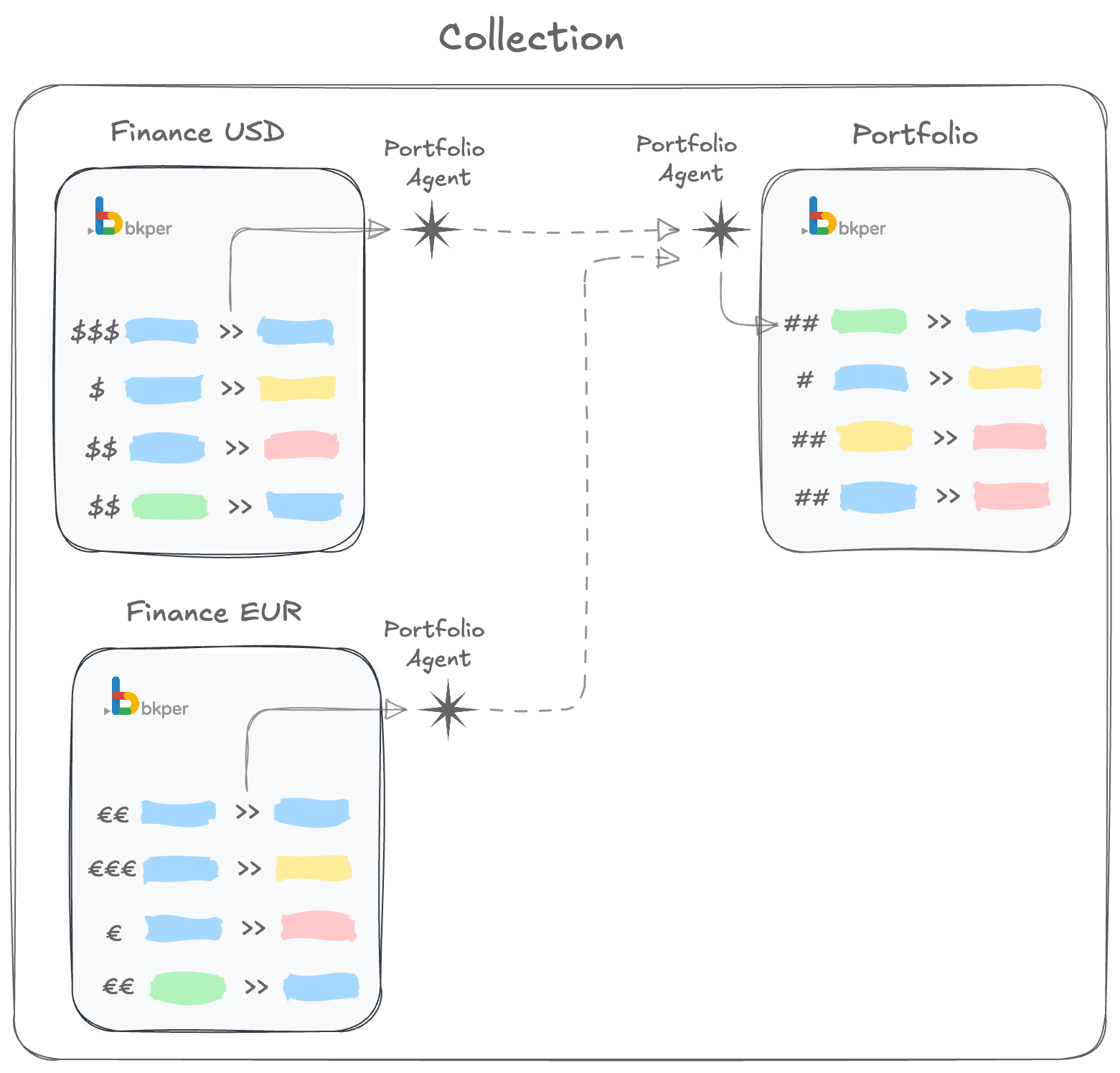
The Portfolio Bot is triggered in financial books on each Post and Check transaction event. When it identifies a stock operation through specific properties, it sends the transaction data to the Portfolio Book, which records the corresponding quantity entry.
Portfolio Bot status
- Gray icon — working properly
- Red icon — error
- No icon — not installed
Portfolio Bot flow
- Post a transaction representing a stock purchase order on the Financial Book:
100 Bank Account >> Exchange buy 10 GOOG - The Post Event triggers the Portfolio Bot, which finds the required stock properties.
- The bot posts a Fee transaction and a Stock purchase transaction on the Financial Book:
10 Exchange >> Feesand90 Exchange >> GOOG - Check the stock purchase transaction:
90 Exchange >> GOOG - The Check Event triggers the Portfolio Bot to post the quantity on the Portfolio Book:
10 Buy >> GOOG
Installation
Books and collection
- Create the Financial Book(s) — one per currency
- Create one Portfolio Book
- Add all books to one collection
- Install the Portfolio Bot on all books in the collection
Accounts
On the Financial Book:
- Asset type — a bank account (JP Morgan), an exchange/broker account (JP Morgan Broker), and a stock account (GOOG)
- Outgoing type — a fees account (Broker Fees)
On the Portfolio Book:
- Asset type — the same stock account (GOOG)
Groups
On the Financial Book: Create a group (e.g. NASDAQ or Portfolio US) and add the securities to it.
On the Portfolio Book: Create a matching group with the same securities.
Configuration
The Portfolio Bot requires Book, Group, Account, and Transaction properties.
Book properties
On Financial Books — the exchange code is required:
exc_code: USDOn the Portfolio Book — indicate this is the quantity-tracking book:
stock_book: truestock_historical: true (optional)stock_fair: true (optional)Group properties
Add stock_exc_code to all stock groups in both Financial and Portfolio Books:
Financial Book USD — on the NASDAQ or Portfolio US group:
stock_exc_code: USDFinancial Book EUR — on the DAX or Portfolio EUR group:
stock_exc_code: EURPortfolio Book — matching groups get the same values:
stock_exc_code: USDThe bot uses this code to keep accounts in sync and to find the way back to the transaction origin.
Account properties
The exchange/broker account requires a fee account property:
stock_fees_account: Broker FeesTransaction properties
Transactions representing purchase or sale orders need these properties:
instrument: GOOGquantity: 10trade_date: 05/07/2025fees: 10 (optional)interest: 0 (optional)order: 1 (optional)Portfolio operations
Purchase of portfolio assets
You post a purchase with required properties in the Financial Book:
05/06/2025 165 JP Morgan >> JP Morgan Exchange buyinstrument: GOOGquantity: 1trade_date: 05/07/2025Portfolio Bot (on Post Event) posts the actual purchase:
05/06/2025 165 JP Morgan Exchange >> GOOG buyfees: 0interests: 0price: 165quantity: 1settlement_date: 2025-05-07You check the purchase transaction.
Portfolio Bot (on Check Event) posts the quantity in the Portfolio Book:
05/06/2025 1 Buy >> GOOG buyoriginal_amount: 165original_quantity: 1purchase_price: 165stock_exc_code: USDSale of portfolio assets
You post a sale in the Financial Book:
05/06/2025 166 JP Morgan Exchange >> JP Morgan sellinstrument: GOOGquantity: 1trade_date: 05/07/2025Portfolio Bot posts the actual sale and, after you check it, records the quantity reduction in the Portfolio Book.
Portfolio Bot operations
Calculate realized results
Open the Portfolio Book, select the asset(s) to calculate, and choose Portfolio Bot from the More menu. Check the mark-to-market checkbox, set the date, and press Calculate.
The bot updates transaction properties, checks transactions in the Portfolio Book, and posts two transactions in the Financial Book representing the gain or loss.
Setting a forward date
Forwarding preserves remaining inventory lots, mark-to-market valuations, and realized results across periods — ensuring the next period starts with the correct FIFO baseline.
Open the Portfolio Book, select the asset(s), choose Portfolio Bot from the More menu, set the forward date, and press Set Forward Date. Calculate any remaining realized results first with Calculate RR, then press Forward Date.
Reset portfolio operations
If you need to correct operations, use Reset to revert all realized result and exchange result transactions back to the last forward date (or the start of the book if no forward date exists).
Template
Explore the template books to see the Portfolio Bot in action:
Developer reference
Find the documentation and source code for the Portfolio Agent on GitHub.