
Tax Bot
Automatically calculate and record tax entries on purchase or sales transactions with the Bkper Tax Bot.
The Tax Bot automatically records tax entries on purchase or sales transactions posted in your book. Taxes are calculated based on the transaction amount and properties set on accounts or groups that specify the rates to apply.
Tax can be included in the overall transaction amount (such as VAT) or excluded and added on top (such as income taxes). Once calculated, the Tax Bot records one or more additional transactions representing the tax entries.
Installation
Open your book, go to the Automations Portal, click Apps, select Tax Bot, and click Install.
Tax Bot status

- Blue icon — working properly
- Red icon — error
- No icon — not installed
Sales scenario
To configure the Tax Bot for sales transactions:
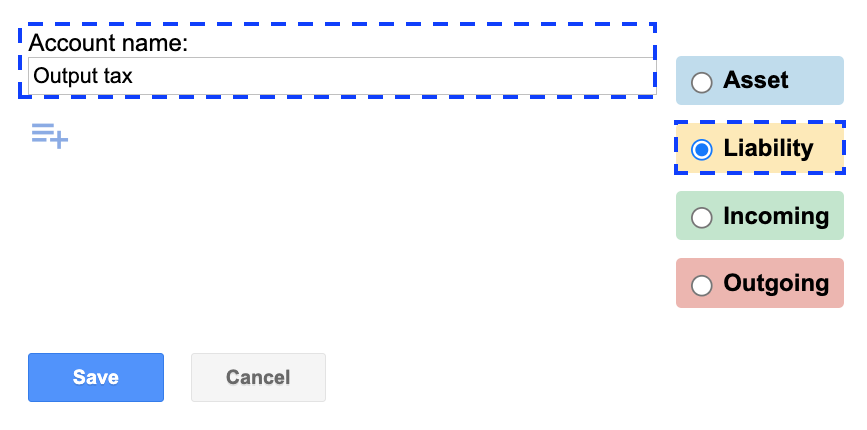
Set up the tax output account
Create a liability account for the tax output (e.g. Output Tax). Tax properties are not set on liability accounts — they are only set on the incoming accounts that trigger the tax calculation.
Configure the incoming account
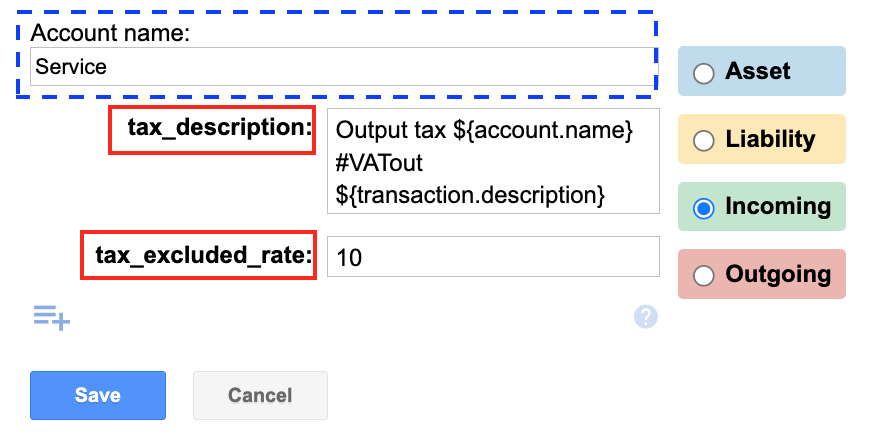
Create an incoming account for the service or product you sell, then add custom properties to it:
tax_description— the description for the generated tax transaction. It can include the tax output account name and the expression${account.name}to dynamically complete the accounts (see Expressions below).tax_excluded_rate— the tax rate to apply on top of the transaction amount.
OR
tax_included_rate— the tax rate to extract from within the transaction amount (for taxes already included in the price).
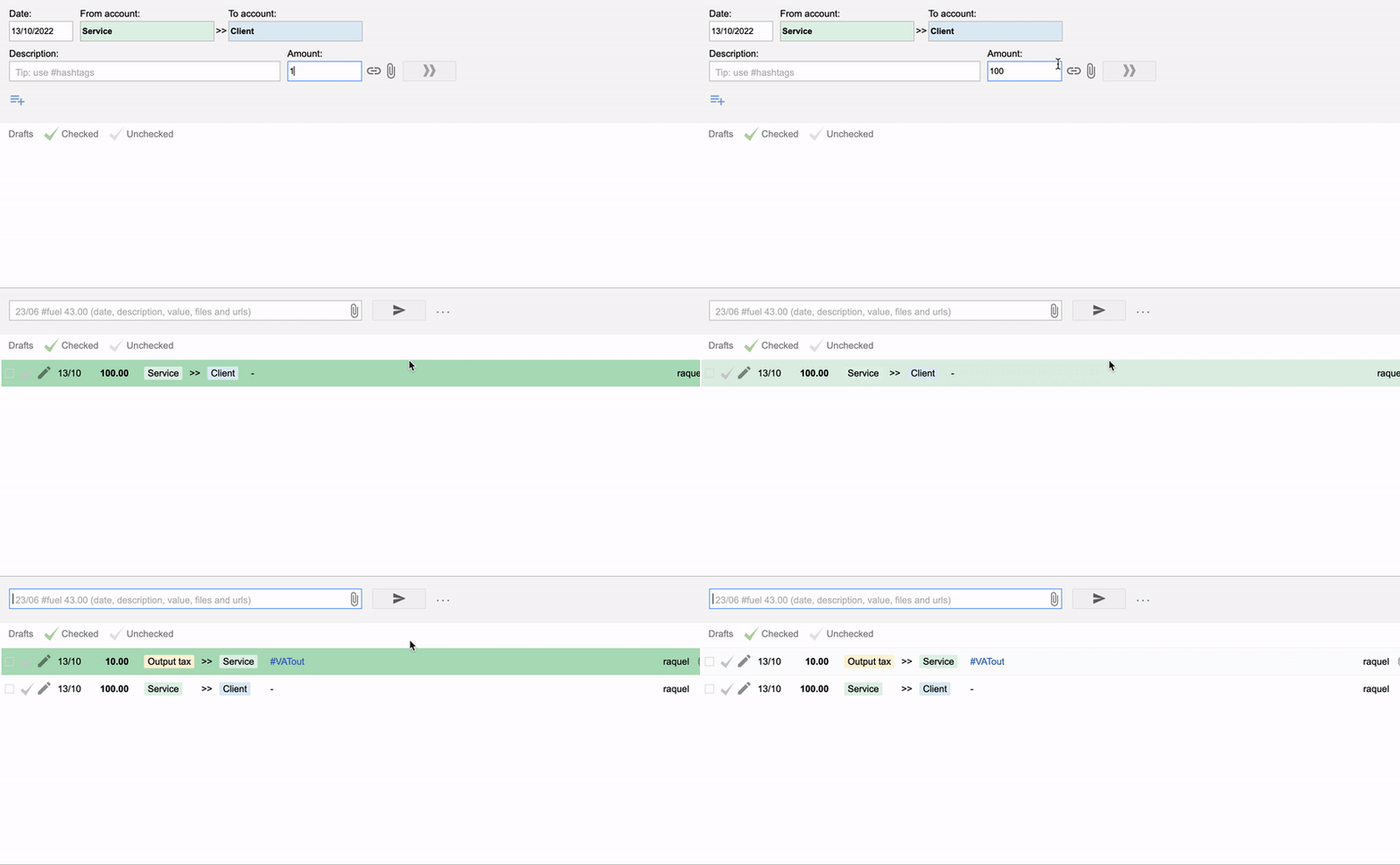
When you post a sales transaction, the Tax Bot automatically records the corresponding tax entry:

Other examples
Generating an additional 7% income tax:
tax_description: #incometaxtax_excluded_rate: 7Extracting 12.85% VAT already included in the transaction:
tax_description: #vatintax_included_rate: 12.85Purchase scenario
For purchase transactions, create an asset account for the Tax Input (representing taxes you can reclaim) and an outgoing account or group for the products or services you acquire. Set the tax properties on the outgoing account or group.
Expressions
Expressions are dynamic variables that reference values from the posting event that triggered the Tax Bot. Use them in the tax_description property to dynamically generate accounts and descriptions on the new tax transaction.
${account.name}— the account that triggered the Tax Bot${account.name.origin}— the account when it participates as the From Account (empty otherwise)${account.name.destinaton}— the account when it participates as the To Account (empty otherwise)${account.contra.name}— the contra account that triggered the Tax Bot${account.contra.name.origin}— the contra account as the From Account (empty otherwise)${account.contra.name.destinaton}— the contra account as the To Account (empty otherwise)${transaction.description}— the description from the posted transaction
How the Tax Bot works
Trigger — The Tax Bot is triggered by the post transaction event. It checks both accounts for tax properties and takes action when either account has tax_description with tax_included_rate or tax_excluded_rate.
Action — The bot collects all data from the transaction including tax properties and records another transaction resembling the tax operation.

Closing an outstanding tax balance
At the end of a tax period, close the outstanding Input and Output tax balances by deducting one from the other and paying the amount due or claiming the amount receivable.

Multiple taxes on one transaction
You cannot add two tax_included_rate or tax_excluded_rate properties to one account. To record multiple taxes (e.g. state and federal) on a single transaction, use groups.
Create two groups — one for the state tax and another for the federal tax — each with its own tax rate properties. Then add the relevant accounts to both groups.

For each posted transaction involving accounts in both groups, the Tax Bot records two separate tax entries.

Removing the Tax Bot
Open your book, go to the Automations Portal, click Book integrations, select Tax Bot, and click Remove.